ابزار Computer Use به شما امکان میدهد تا عاملهای کنترل مرورگر، موبایل و دسکتاپ بسازید که با وظایف تعامل داشته و آنها را خودکار میکنند. با استفاده از اسکرینشاتها، مدل میتواند صفحه کامپیوتر را "ببیند" و با تولید اقدامات خاص رابط کاربری مانند کلیک ماوس و ورودیهای صفحه کلید "عمل" کند. مشابه فراخوانی تابع، برای دریافت و اجرای اقدامات Computer Use به پیادهسازی محیط اجرای سمت کلاینت نیاز خواهید داشت.
برای لیست مدلهای پشتیبانیشده، به نسخههای مدل مراجعه کنید. مدلهای Gemini 3.x از چندین قابلیت پیشرفته پشتیبانی میکنند:
- پشتیبانی از چند محیط: ساخت عاملها برای محیطهای مرورگر، موبایل و دسکتاپ .
- اقدامات سادهشده با اهداف: اقدامات شامل یک فیلد
intentهستند که استدلال مدل را در پشت هر مرحله توضیح میدهد. - سیاستهای ایمنی قابل تنظیم: تنظیم دقیق رفتار ایمنی با دستهها و لغوهای سیاستهای داخلی.
- تشخیص تزریق سریع: اسکن اسکرینشات با قابلیت انتخاب برای شناسایی دستورالعملهای خصمانهی پنهان.
با استفاده از کامپیوتر، میتوانید عاملهایی بسازید که:
- خودکارسازی ورود اطلاعات تکراری یا پر کردن فرم در وبسایتها.
- انجام تست خودکار برنامههای وب و جریانهای کاربری
- انجام تحقیقات در وبسایتهای مختلف (مثلاً جمعآوری اطلاعات محصول، قیمتها و نظرات از سایتهای تجارت الکترونیک برای اطلاعرسانی در مورد خرید)
در اینجا یک مثال ساده از فعال کردن ابزار استفاده از کامپیوتر آورده شده است:
پایتون
from google import genai
from google.genai import types
client = genai.Client()
response = client.models.generate_content(
model="gemini-3.8-flash",
contents="Search for 'Gemini API' on Google.",
config=types.GenerateContentConfig(
tools=[types.Tool(
computer_use=types.ComputerUse(
environment=types.Environment.ENVIRONMENT_BROWSER,
)
)]
)
)
print(response.text)
جاوا اسکریپت
import { GoogleGenAI } from '@google/genai';
const ai = new GoogleGenAI();
const response = await ai.models.generateContent({
model: 'gemini-3.8-flash',
contents: "Search for 'Gemini API' on Google.",
config: {
tools: [{
computerUse: {
environment: "ENVIRONMENT_BROWSER",
}
}]
}
});
console.log(response.text);
نحوه استفاده از کامپیوتر
برای ساخت یک عامل با مدل استفاده از کامپیوتر، باید یک حلقه پیوسته بین برنامه خود و API ایجاد کنید. در اینجا کاری که کد شما در هر مرحله انجام خواهد داد، آمده است:
- ارسال درخواست به مدل
- برنامه شما یک درخواست API حاوی ابزار Computer Use، تنظیمات پیکربندی شما (مانند محیط هدف)، اعلان کاربر و یک اسکرینشات از صفحه فعلی ارسال میکند.
- پاسخ مدل را دریافت کنید
- این مدل صفحه نمایش و اعلان را تجزیه و تحلیل میکند و پاسخی را برمیگرداند که شامل یک
function_callپیشنهادی است که نشاندهنده یک عمل رابط کاربری (مانند کلیک، اسکرول یا فشردن کلید) است. - برای مدلهای Gemini 3.x ، پاسخ همچنین شامل یک
intentاستدلالی است که توضیح میدهد چرا مدل آن اقدام را انتخاب کرده است. - این پاسخ همچنین ممکن است شامل یک
safety_decisionاز یک سیستم ایمنی داخلی باشد که اقدام را به عنوان منظم/مجاز،require_confirmationتأیید کاربر یا مسدود شده طبقهبندی میکند.
- این مدل صفحه نمایش و اعلان را تجزیه و تحلیل میکند و پاسخی را برمیگرداند که شامل یک
- اجرای اکشن دریافتی
- اگر عمل مجاز باشد (یا کاربر آن را تأیید کند)، کد سمت کلاینت شما
function_callتجزیه میکند، مختصات نرمالشده را برای مطابقت با نمای شما مقیاسبندی میکند و عمل را در محیط هدف شما با استفاده از ابزارهای اتوماسیون (مانند Playwright) اجرا میکند. اگر عمل مسدود شده باشد، کلاینت شما باید اجرا را متوقف کند یا وقفه را مدیریت کند.
- اگر عمل مجاز باشد (یا کاربر آن را تأیید کند)، کد سمت کلاینت شما
- ثبت وضعیت جدید محیط
- پس از اتمام اجرای اکشن، برنامه شما یک اسکرینشات جدید میگیرد و آن را در یک
function_resultبه مدل ارسال میکند تا مرحله بعدی را درخواست کند.
- پس از اتمام اجرای اکشن، برنامه شما یک اسکرینشات جدید میگیرد و آن را در یک
این فرآیند سپس از مرحله ۲ تکرار میشود و به طور مداوم اقدام بعدی را از مدل درخواست میکند تا زمانی که وظیفه تکمیل یا خاتمه یابد.
مرور کلی استفاده از کامپیوتر ↗
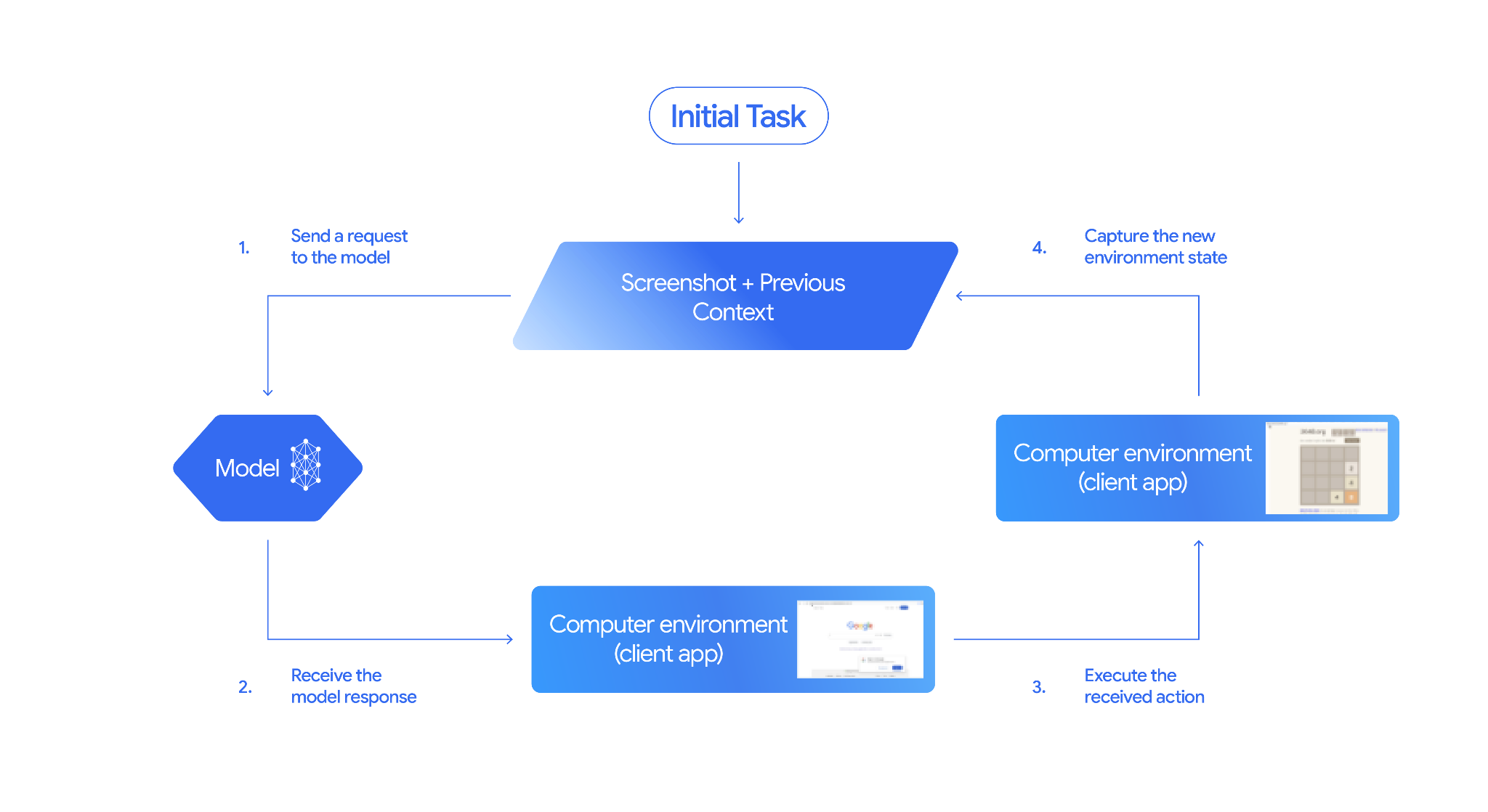
نحوه پیادهسازی استفاده از کامپیوتر
قبل از ساخت با ابزار Computer Use، باید موارد زیر را تنظیم کنید:
- محیط اجرای امن: عامل خود را در یک ماشین مجازی یا کانتینرِ سندباکسشده اجرا کنید تا آن را از سیستم میزبان خود جدا کرده و تأثیر بالقوه آن را محدود کنید. پیادهسازی مرجع شامل یک سندباکس آماده برای استفاده مبتنی بر داکر است که میتوانید به عنوان نقطه شروع از آن استفاده کنید.
- کنترلکنندهی عملیات سمت کلاینت: منطق سمت کلاینت را برای اجرای مختصات، تایپ متن و گرفتن اسکرینشات پیادهسازی کنید.
مثالهای زیر از یک مرورگر وب به عنوان محیط اجرا و از Playwright به عنوان هندلر سمت کلاینت استفاده میکنند.
0. تنظیم نمایشنامه نویس
ابتدا بستههای مورد نیاز را نصب کنید:
pip install google-genai playwright
playwright install chromium
سپس، یک نمونه مرورگر Playwright را برای اجرا، مقداردهی اولیه کنید:
from playwright.sync_api import sync_playwright
# 1. Configure screen dimensions for the target environment
SCREEN_WIDTH = 1440
SCREEN_HEIGHT = 900
# 2. Start the Playwright browser
# In production, utilize a sandboxed environment.
playwright = sync_playwright().start()
# Set headless=False to see the actions performed on your screen
browser = playwright.chromium.launch(headless=False)
# 3. Create a context and page with the specified dimensions
context = browser.new_context(
viewport={"width": SCREEN_WIDTH, "height": SCREEN_HEIGHT}
)
page = context.new_page()
# 4. Navigate to an initial page to start the task
page.goto("https://www.google.com")
# The 'page', 'SCREEN_WIDTH', and 'SCREEN_HEIGHT' variables
# will be used in the steps below.
۱. ارسال درخواست به مدل
کتابخانه کلاینت را مقداردهی اولیه کنید و ابزار استفاده از کامپیوتر را پیکربندی کنید. توجه داشته باشید که هنگام صدور درخواست نیازی به مشخص کردن اندازه صفحه نمایش نیست؛ مدل مختصات پیکسلی را که با ارتفاع و عرض صفحه نمایش مقیاسبندی شدهاند، پیشبینی میکند.
جمینی ۳.x
پایتون
از google-genai Python SDK (نسخه 2.7.0 یا بالاتر) برای پیکربندی درخواستی که محیط مرورگر را هدف قرار میدهد، استفاده کنید:
from google import genai
from google.genai.types import (
Content,
Part,
GenerateContentConfig,
Tool,
ComputerUse,
Environment,
ThinkingConfig,
)
client = genai.Client()
response = client.models.generate_content(
model="gemini-3.8-flash",
contents=[
Content(
role="user",
parts=[
Part(text="Find a flight from SF to Hawaii on Jun 30th, coming back on Jul 6th"),
],
)
],
config=GenerateContentConfig(
tools=[
Tool(
computer_use=ComputerUse(
environment=Environment.ENVIRONMENT_BROWSER,
enable_prompt_injection_detection=True,
),
),
],
thinking_config=ThinkingConfig(
include_thoughts=True
),
)
)
print(response.text)
جاوا اسکریپت
از SDK نود.جیاس @google/genai برای پیکربندی درخواستی که محیط مرورگر را هدف قرار میدهد، استفاده کنید:
import { GoogleGenAI } from '@google/genai';
const ai = new GoogleGenAI();
const response = await ai.models.generateContent({
model: 'gemini-3.8-flash',
contents: [
{
role: 'user',
parts: [{ text: "Find a flight from SF to Hawaii on Jun 30th, coming back on Jul 6th" }]
}
],
config: {
tools: [{
computerUse: {
environment: "ENVIRONMENT_BROWSER",
enable_prompt_injection_detection: true
}
}],
thinkingConfig: {
includeThoughts: true
}
}
});
console.log(response.text);
استراحت
برای ارسال درخواست از curl استفاده کنید:
curl -X POST \
"https://generativelanguage.googleapis.com/v1beta/models/gemini-3.8-flash:generateContent?key=$GEMINI_API_KEY" \
-H "Content-Type: application/json" \
-d '{
"contents": [
{
"role": "user",
"parts": {
"text": "Find me a flight from SF to Hawaii on Jun 30th, coming back on Jul 6th. Start by navigating directly to flights.google.com"
}
}
],
"tools": [
{
"computer_use": {
"environment": "ENVIRONMENT_BROWSER",
"enable_prompt_injection_detection": true
}
}
]
}'
جمینی ۲.۵ (لگسی)
پایتون
from google import genai
from google.genai import types
from google.genai.types import Content, Part
client = genai.Client()
# Specify predefined functions to exclude (optional)
excluded_functions = ["drag_and_drop"]
generate_content_config = genai.types.GenerateContentConfig(
tools=[
types.Tool(
computer_use=types.ComputerUse(
environment=types.Environment.ENVIRONMENT_BROWSER,
excluded_predefined_functions=excluded_functions
)
),
],
)
contents=[
Content(
role="user",
parts=[
Part(text="Search for highly rated smart fridges on Google Shopping."),
],
)
]
response = client.models.generate_content(
model='gemini-2.5-computer-use-preview-10-2025',
contents=contents,
config=generate_content_config,
)
print(response)
جاوا اسکریپت
import { GoogleGenAI } from '@google/genai';
const ai = new GoogleGenAI();
// Specify predefined functions to exclude (optional)
const excludedFunctions = ["drag_and_drop"];
const response = await ai.models.generateContent({
model: 'gemini-2.5-computer-use-preview-10-2025',
contents: [
{
role: 'user',
parts: [{ text: "Search for highly rated smart fridges on Google Shopping." }]
}
],
config: {
tools: [{
computerUse: {
environment: "ENVIRONMENT_BROWSER",
excluded_predefined_functions: excludedFunctions
}
}]
}
});
console.log(response);
۲. پاسخ مدل را دریافت کنید
مدل پاسخ، فراخوانی یک تابع را پیشنهاد میدهد. برای مدلهای Gemini 3.x ، پاسخ شامل یک هدف استدلالی متناسب با مختصات است. در زیر نمونههایی از هر دو پاسخ نشان داده شده است:
جمینی ۳.x
{
"function_call": {
"name": "click",
"args": {
"x": 450,
"y": 120,
"intent": "Click the search box to type the destination."
}
}
}
جمینی ۲.۵ (لگسی)
{
"content": {
"parts": [
{
"text": "I will type the search query into the search bar."
},
{
"function_call": {
"name": "type_text_at",
"args": {
"x": 371,
"y": 470,
"text": "highly rated smart fridges",
"press_enter": true
}
}
}
]
}
}
۳. اقدامات دریافتی را اجرا کنید
کد برنامه شما باید پاسخ مدل را تجزیه و تحلیل کند، اقدامات را اجرا کند و نتایج را جمعآوری کند.
کد زیر هم دستورات ابزار قدیمی ( click_at ، type_text_at ) و هم دستورات ساده و مدرن ( click ، type ) را مدیریت میکند.
پایتون
from typing import Any, List, Tuple
import time
def denormalize_x(x: int, screen_width: int) -> int:
"""Convert normalized x coordinate (0-1000) to actual pixel coordinate."""
return int(x / 1000 * screen_width)
def denormalize_y(y: int, screen_height: int) -> int:
"""Convert normalized y coordinate (0-1000) to actual pixel coordinate."""
return int(y / 1000 * screen_height)
def execute_function_calls(interaction, page, screen_width, screen_height):
results = []
function_calls = []
# Parse content parts (Handling legacy and Gemini 3 response structures)
parts = candidate.content.parts if hasattr(candidate, 'content') else []
if not parts and hasattr(candidate, 'function_calls'):
function_calls = candidate.function_calls
else:
for part in parts:
if part.function_call:
function_calls.append(part.function_call)
for function_call in function_calls:
action_result = {}
fname = function_call.name
args = function_call.args
print(f" -> Executing: {fname} (Intent: {args.get('intent', 'N/A')})")
try:
if fname in ("open_web_browser", "open_app"):
pass # Handled / already open
elif fname in ("click", "click_at", "double_click", "triple_click", "middle_click", "right_click", "move", "long_press"):
actual_x = denormalize_x(args["x"], screen_width)
actual_y = denormalize_y(args["y"], screen_height)
if fname in ("click", "click_at"):
page.mouse.click(actual_x, actual_y)
elif fname == "double_click":
page.mouse.dblclick(actual_x, actual_y)
elif fname == "right_click":
page.mouse.click(actual_x, actual_y, button="right")
elif fname == "middle_click":
page.mouse.click(actual_x, actual_y, button="middle")
elif fname == "move":
page.mouse.move(actual_x, actual_y)
elif fname in ("type", "type_text_at"):
actual_x = denormalize_x(args["x"], screen_width) if "x" in args else None
actual_y = denormalize_y(args["y"], screen_height) if "y" in args else None
text = args["text"]
press_enter = args.get("press_enter", False)
if actual_x is not None and actual_y is not None:
page.mouse.click(actual_x, actual_y)
# Clear field first
page.keyboard.press("Meta+A")
page.keyboard.press("Backspace")
page.keyboard.type(text)
if press_enter:
page.keyboard.press("Enter")
elif fname == "navigate":
page.goto(args["url"])
elif fname == "go_back":
page.go_back()
elif fname == "go_forward":
page.go_forward()
elif fname == "wait":
time.sleep(args.get("seconds", 1))
else:
print(f"Warning: Custom or unhandled function {fname}")
page.wait_for_load_state(timeout=5000)
time.sleep(1)
except Exception as e:
print(f"Error executing {fname}: {e}")
action_result = {"error": str(e)}
results.append((fname, function_call.id, action_result))
return results
جاوا اسکریپت
function denormalizeX(x, screenWidth) {
// Convert normalized x coordinate (0-1000) to actual pixel coordinate.
return Math.floor((x / 1000) * screenWidth);
}
function denormalizeY(y, screenHeight) {
// Convert normalized y coordinate (0-1000) to actual pixel coordinate.
return Math.floor((y / 1000) * screenHeight);
}
async function executeFunctionCalls(candidate, page, screenWidth, screenHeight) {
const results = [];
let functionCalls = [];
// Parse function calls from candidate response
const parts = candidate.content?.parts || [];
if (parts.length === 0 && candidate.functionCalls) {
functionCalls = candidate.functionCalls;
} else {
for (const part of parts) {
if (part.functionCall) {
functionCalls.push(part.functionCall);
}
}
}
for (const functionCall of functionCalls) {
const actionResult = {};
const fname = functionCall.name;
const args = functionCall.args;
console.log(` -> Executing: ${fname} (Intent: ${args.intent || 'N/A'})`);
try {
if (fname === "open_web_browser" || fname === "open_app") {
// Handled / already open
} else if (["click", "click_at", "double_click", "triple_click", "middle_click", "right_click", "move", "long_press"].includes(fname)) {
const actualX = denormalizeX(args.x, screenWidth);
const actualY = denormalizeY(args.y, screenHeight);
if (fname === "click" || fname === "click_at") {
await page.mouse.click(actualX, actualY);
} else if (fname === "double_click") {
await page.mouse.dblclick(actualX, actualY);
} else if (fname === "right_click") {
await page.mouse.click(actualX, actualY, { button: "right" });
} else if (fname === "middle_click") {
await page.mouse.click(actualX, actualY, { button: "middle" });
} else if (fname === "move") {
await page.mouse.move(actualX, actualY);
}
} else if (fname === "type" || fname === "type_text_at") {
const actualX = args.x !== undefined ? denormalizeX(args.x, screenWidth) : null;
const actualY = args.y !== undefined ? denormalizeY(args.y, screenHeight) : null;
const text = args.text;
const pressEnter = args.press_enter || false;
if (actualX !== null && actualY !== null) {
await page.mouse.click(actualX, actualY);
}
// Clear field first
await page.keyboard.press("Meta+A");
await page.keyboard.press("Backspace");
await page.keyboard.type(text);
if (pressEnter) {
await page.keyboard.press("Enter");
}
} else if (fname === "navigate") {
await page.goto(args.url);
} else if (fname === "go_back") {
await page.goBack();
} else if (fname === "go_forward") {
await page.goForward();
} else if (fname === "wait") {
await new Promise(resolve => setTimeout(resolve, (args.seconds || 1) * 1000));
} else {
console.log(`Warning: Custom or unhandled function ${fname}`);
}
await page.waitForLoadState('load', { timeout: 5000 }).catch(() => {});
await new Promise(resolve => setTimeout(resolve, 1000));
} catch (e) {
console.log(`Error executing ${fname}: ${e}`);
actionResult.error = e.message;
}
results.push([fname, functionCall.id, actionResult]);
}
return results;
}
۴. ثبت وضعیت جدید محیط
یک نمایش صفحه نمایش را ضبط کرده و آن را به مدل برگردانید.
پایتون
def get_function_responses(page, results):
screenshot_bytes = page.screenshot(type="png")
current_url = page.url
function_responses = []
for name, call_id, result in results:
function_responses.append({
"type": "function_result",
"name": name,
"call_id": call_id,
"result": [
{
"type": "text",
"text": json.dumps({"url": current_url, **result})
},
{
"type": "image",
"data": base64.b64encode(screenshot_bytes).decode("utf-8"),
"mime_type": "image/png"
}
]
})
return function_responses
جاوا اسکریپت
async function getFunctionResponses(page, results) {
const screenshotBuffer = await page.screenshot({ type: 'png' });
const screenshotBase64 = screenshotBuffer.toString('base64');
const currentUrl = page.url();
const functionResponses = [];
for (const [name, callId, result] of results) {
functionResponses.push({
type: "function_result",
name: name,
call_id: callId,
result: [
{
type: "text",
text: JSON.stringify({ url: currentUrl, ...result })
},
{
type: "image",
data: screenshotBase64,
mime_type: "image/png"
}
]
});
}
return functionResponses;
}
پس از اینکه نحوه ثبت و قالببندی وضعیت محیط را تعریف کردید، میتوانید تمام این مراحل را در یک حلقه اجرای پیوسته ترکیب کنید.
یک حلقه عامل بسازید
برای فعال کردن تعاملات چند مرحلهای، چهار مرحله از بخش « نحوه پیادهسازی استفاده از کامپیوتر» را در یک حلقه واحد ترکیب کنید. این حلقه به درخواست اقدامات و ارسال نتایج به مدل ادامه میدهد تا زمانی که وظیفه کامل شود.
به یاد داشته باشید که تاریخچه مکالمات را به درستی مدیریت کنید، به این صورت که در هر مرحله، هم پاسخهای مدل و هم پاسخهای تابع خود را به تاریخچه اضافه کنید.
پایتون
import time
from typing import Any, List, Tuple
from playwright.sync_api import sync_playwright
from google import genai
from google.genai import types
client = genai.Client()
SCREEN_WIDTH = 1440
SCREEN_HEIGHT = 900
print("Initializing browser...")
playwright = sync_playwright().start()
browser = playwright.chromium.launch(headless=False)
context = browser.new_context(viewport={"width": SCREEN_WIDTH, "height": SCREEN_HEIGHT})
page = context.new_page()
# Paste helper functions execute_function_calls and get_function_responses here
try:
page.goto("https://ai.google.dev/gemini-api/docs")
config = types.GenerateContentConfig(
tools=[types.Tool(computer_use=types.ComputerUse(
environment=types.Environment.ENVIRONMENT_BROWSER,
enable_prompt_injection_detection=True
))],
thinking_config=types.ThinkingConfig(include_thoughts=True),
)
initial_screenshot = page.screenshot(type="png")
USER_PROMPT = "Go to ai.google.dev/gemini-api/docs and search for pricing."
print(f"Goal: {USER_PROMPT}")
contents = [
types.Content(role="user", parts=[
types.Part(text=USER_PROMPT),
types.Part.from_bytes(data=initial_screenshot, mime_type='image/png')
])
]
# Agent Loop
turn_limit = 5
for i in range(turn_limit):
print(f"\n--- Turn {i+1} ---")
print("Thinking...")
response = client.models.generate_content(
model='gemini-3.8-flash',
contents=contents,
config=config,
)
candidate = response.candidates[0]
contents.append(candidate.content)
has_function_calls = any(part.function_call for part in candidate.content.parts)
if not has_function_calls:
text_response = " ".join(
part.text for part in candidate.content.parts if hasattr(part, 'text')
)
print("Agent finished:", text_response)
break
print("Executing actions...")
results = execute_function_calls(candidate, page, SCREEN_WIDTH, SCREEN_HEIGHT)
print("Capturing state...")
function_responses = get_function_responses(page, results)
contents.append(
types.Content(role="user", parts=[types.Part(function_response=fr) for fr in function_responses])
)
finally:
print("Closing browser...")
browser.close()
playwright.stop()
جاوا اسکریپت
import { chromium } from 'playwright';
import { GoogleGenAI } from '@google/genai';
const ai = new GoogleGenAI();
// Constants for screen dimensions
const SCREEN_WIDTH = 1440;
const SCREEN_HEIGHT = 900;
console.log("Initializing browser...");
const browser = await chromium.launch({ headless: false });
const context = await browser.newContext({
viewport: { width: SCREEN_WIDTH, height: SCREEN_HEIGHT }
});
const page = await context.newPage();
// Define helper functions. Copy/paste from steps 3 and 4:
// function denormalizeX(...)
// function denormalizeY(...)
// async function executeFunctionCalls(...)
// async function getFunctionResponses(...)
try {
await page.goto("https://ai.google.dev/gemini-api/docs");
const config = {
tools: [{
computerUse: {
environment: "ENVIRONMENT_BROWSER",
enable_prompt_injection_detection: true
}
}],
thinkingConfig: { includeThoughts: true }
};
const initialScreenshotBuffer = await page.screenshot({ type: 'png' });
const initialScreenshotBase64 = initialScreenshotBuffer.toString('base64');
const USER_PROMPT = "Go to ai.google.dev/gemini-api/docs and search for pricing.";
console.log(`Goal: ${USER_PROMPT}`);
const contents = [
{
role: "user",
parts: [
{ text: USER_PROMPT },
{
inlineData: {
data: initialScreenshotBase64,
mimeType: "image/png"
}
}
]
}
];
// Agent Loop
const turnLimit = 5;
for (let i = 0; i < turnLimit; i++) {
console.log(`\n--- Turn ${i + 1} ---`);
console.log("Thinking...");
const response = await ai.models.generateContent({
model: 'gemini-3.8-flash',
contents: contents,
config: config
});
const candidate = response.candidates[0];
contents.push(candidate.content);
const hasFunctionCalls = candidate.content.parts.some(part => part.functionCall);
if (!hasFunctionCalls) {
const textResponse = candidate.content.parts
.filter(part => part.text)
.map(part => part.text)
.join(" ");
console.log("Agent finished:", textResponse);
break;
}
console.log("Executing actions...");
const results = await executeFunctionCalls(candidate, page, SCREEN_WIDTH, SCREEN_HEIGHT);
console.log("Capturing state...");
const functionResponses = await getFunctionResponses(page, results);
contents.push({
role: "user",
parts: functionResponses.map(fr => ({
...fr
}))
});
}
} finally {
console.log("Closing browser...");
await browser.close();
}
محیطهای پشتیبانیشده (Gemini 3.x)
مدلهای Gemini 3.x از سه محیط مشخص شده در تنظیمات computer_use پشتیبانی میکنند:
محیط مرورگر ( ENVIRONMENT_BROWSER )
اقدامات تحت ابزار مرورگر:
| نام فرمان | توضیحات | آرگومانها (در فراخوانی تابع) |
|---|---|---|
| کلیک | کلیک چپ در مختصات. | y : عدد صحیح (0-999)x : عدد صحیح (0-999)intent : خیابان |
| دوبار_کلیک | روی مختصات دوبار کلیک کنید. | y : عدد صحیح (0-999)x : عدد صحیح (0-999)intent : خیابان |
| کلیک سهتایی | سه بار کلیک در مختصات. | y : عدد صحیح (0-999)x : عدد صحیح (0-999)intent : خیابان |
| کلیک_وسط | کلیکهای میانی در مختصات. | y : عدد صحیح (0-999)x : عدد صحیح (0-999)intent : خیابان |
| کلیک راست | کلیک راست روی مختصات. | y : عدد صحیح (0-999)x : عدد صحیح (0-999)intent : خیابان |
| mouse_down | دکمه ماوس را در مختصات فشار داده و نگه میدارد. | y : عدد صحیح (0-999)x : عدد صحیح (0-999)intent : خیابان |
| mouse_up | دکمه ماوس را در مختصات رها میکند. | y : عدد صحیح (0-999)x : عدد صحیح (0-999)intent : خیابان |
| حرکت | مکان نما را به موقعیت مشخص شده منتقل می کند. | y : عدد صحیح (0-999)x : عدد صحیح (0-999)intent : خیابان |
| نوع | متن را تایپ میکند. | text : خیابانpress_enter : bool (اختیاری، پیشفرض false )intent : خیابان |
| کشیدن و رها کردن | یک آیتم را از مختصات شروع به مختصات پایان میکشد. | start_y : عدد صحیح (0-999)start_x : عدد صحیح (0-999)end_y : عدد صحیح (0-999)end_x : عدد صحیح (0-999)intent : خیابان |
| صبر کن | اجرا را برای مدت زمان مشخصی (بر حسب ثانیه) متوقف میکند. | seconds : عدد صحیح (اختیاری، پیشفرض 1 )intent : خیابان |
| کلید_فشاری | کلید مشخص شده را فشار داده و رها میکند. | key : خیابانintent : خیابان |
| کلید_پایین | کلید مشخص شده را فشار داده و نگه میدارد. | key : خیابانintent : خیابان |
| کلید_بالا | کلید مشخص شده را آزاد میکند. | key : خیابانintent : خیابان |
| کلید میانبر | ترکیب کلید مشخص شده را فشار میدهد. | keys : List[str]intent : str |
| گرفتن_اسکرین_شات | یک اسکرینشات از صفحه نمایش فعلی برمیگرداند. | intent : خیابان |
| اسکرول | با فاصله پیکسلی، به بالا، پایین، چپ یا راست پیمایش میکند. | y : عدد صحیح (0-999)x : عدد صحیح (0-999)direction : str ( "up" ، "down" ، "left" ، "right" )magnitude_in_pixels : عدد صحیح (0-999، اختیاری، پیشفرض 300 )intent : خیابان |
| برو_برگشت | به صفحه وب قبلی در تاریخچه مرورگر برمیگردد. | intent : خیابان |
| پیمایش | مستقیماً به یک URL مشخص شده هدایت میشود. | url : خیابانintent : خیابان |
| برو_به_جلو | به صفحه وب بعدی در تاریخچه مرورگر میرود. | intent : خیابان |
محیط موبایل ( ENVIRONMENT_MOBILE )
اقدامات محیطی بهینه شده برای اندروید:
| نام فرمان | توضیحات | آرگومانها (در فراخوانی تابع) |
|---|---|---|
| باز_برنامه | یک برنامه را با استفاده از نام آن باز میکند. | app_name : strintent : خیابان |
| کلیک | کلیک چپ در مختصات. | y : عدد صحیح (0-999)x : عدد صحیح (0-999)intent : خیابان |
| لیست_اپلیکیشنها | برنامههای موجود روی دستگاه را فهرست میکند و نام و نام بستهی آنها را برمیگرداند. | intent : خیابان |
| صبر کن | اجرا را برای مدت زمان مشخصی (بر حسب ثانیه) متوقف میکند. | seconds : عدد صحیح (اختیاری، پیشفرض 1 )intent : خیابان |
| برو_برگشت | به صفحه یا صفحه وب قبلی برمیگردد. | intent : خیابان |
| نوع | متن را تایپ میکند. | text : خیابانpress_enter : bool (اختیاری، پیشفرض false )intent : خیابان |
| کشیدن و رها کردن | یک آیتم را از مختصات شروع به مختصات پایان میکشد. | start_y : عدد صحیح (0-999)start_x : عدد صحیح (0-999)end_y : عدد صحیح (0-999)end_x : عدد صحیح (0-999)intent : خیابان |
| فشار طولانی | یک فشار طولانی روی یک مختصات روی صفحه انجام میدهد. | y : عدد صحیح (0-999)x : عدد صحیح (0-999)seconds : عدد صحیح (اختیاری، پیشفرض 2 )intent : خیابان |
| کلید_فشاری | کلید مشخص شده را فشار داده و رها میکند. | key : خیابانintent : خیابان |
| گرفتن_اسکرین_شات | یک اسکرینشات از صفحه نمایش فعلی برمیگرداند. | intent : خیابان |
محیط دسکتاپ ( ENVIRONMENT_DESKTOP )
دستورات مکاننما در سطح سیستمعامل در محیطهای دسکتاپ:
| نام فرمان | توضیحات | آرگومانها (در فراخوانی تابع) |
|---|---|---|
| کلیک | کلیک چپ در مختصات. | y : عدد صحیح (0-999)x : عدد صحیح (0-999)intent : خیابان |
| دوبار_کلیک | روی مختصات دوبار کلیک کنید. | y : عدد صحیح (0-999)x : عدد صحیح (0-999)intent : خیابان |
| کلیک سهتایی | سه بار کلیک در مختصات. | y : عدد صحیح (0-999)x : عدد صحیح (0-999)intent : خیابان |
| کلیک_وسط | کلیکهای میانی در مختصات. | y : عدد صحیح (0-999)x : عدد صحیح (0-999)intent : خیابان |
| کلیک راست | کلیک راست روی مختصات. | y : عدد صحیح (0-999)x : عدد صحیح (0-999)intent : خیابان |
| mouse_down | دکمه ماوس را در مختصات فشار داده و نگه میدارد. | y : عدد صحیح (0-999)x : عدد صحیح (0-999)intent : خیابان |
| mouse_up | دکمه ماوس را در مختصات رها میکند. | y : عدد صحیح (0-999)x : عدد صحیح (0-999)intent : خیابان |
| حرکت | مکان نما را به موقعیت مشخص شده منتقل می کند. | y : عدد صحیح (0-999)x : عدد صحیح (0-999)intent : خیابان |
| نوع | متن را تایپ میکند. | text : خیابانpress_enter : bool (اختیاری، پیشفرض false )intent : خیابان |
| کشیدن و رها کردن | یک آیتم را از مختصات شروع به مختصات پایان میکشد. | start_y : عدد صحیح (0-999)start_x : عدد صحیح (0-999)end_y : عدد صحیح (0-999)end_x : عدد صحیح (0-999)intent : خیابان |
| صبر کن | اجرا را برای مدت زمان مشخصی (بر حسب ثانیه) متوقف میکند. | seconds : عدد صحیح (اختیاری، پیشفرض 1 )intent : خیابان |
| کلید_فشاری | کلید مشخص شده را فشار داده و رها میکند. | key : خیابانintent : خیابان |
| کلید_پایین | کلید مشخص شده را فشار داده و نگه میدارد. | key : خیابانintent : خیابان |
| کلید_بالا | کلید مشخص شده را آزاد میکند. | key : خیابانintent : خیابان |
| کلید میانبر | ترکیب کلید مشخص شده را فشار میدهد. | keys : List[str]intent : str |
| گرفتن_اسکرین_شات | یک اسکرینشات از صفحه نمایش فعلی برمیگرداند. | intent : خیابان |
| اسکرول | با فاصله پیکسلی، به بالا، پایین، چپ یا راست پیمایش میکند. | y : عدد صحیح (0-999)x : عدد صحیح (0-999)direction : str ( "up" ، "down" ، "left" ، "right" )magnitude_in_pixels : عدد صحیح (0-999، اختیاری، پیشفرض 300 )intent : خیابان |
اقدامات رابط کاربری قدیمی پشتیبانی شده (Gemini 2.5)
برای مدلهای قدیمی ( gemini-2.5-computer-use-preview-10-2025 )، اقدامات زیر پشتیبانی میشوند:
| نام فرمان | توضیحات | آرگومانها (در فراخوانی تابع) | مثال فراخوانی تابع |
|---|---|---|---|
| مرورگر وب را باز کنید | مرورگر وب را باز میکند. | هیچکدام | {"name": "open_web_browser", "args": {}} |
| صبر_5_ثانیه | اجرا را به مدت ۵ ثانیه متوقف میکند. | هیچکدام | {"name": "wait_5_seconds", "args": {}} |
| برو_برگشت | به صفحه قبلی در تاریخچه میرود. | هیچکدام | {"name": "go_back", "args": {}} |
| برو_به_جلو | به صفحه بعدی در تاریخچه میرود. | هیچکدام | {"name": "go_forward", "args": {}} |
| جستجو | به موتور جستجوی پیشفرض هدایت میشود. | هیچکدام | {"name": "search", "args": {}} |
| پیمایش | مرورگر را مستقیماً به آدرس اینترنتی مشخص شده هدایت میکند. | url : خیابان | {"name": "navigate", "args": {"url": "https://www.wikipedia.org"}} |
| کلیک_در | کلیکها در یک مختصات خاص. | y : عدد صحیح (0-999) ، x : عدد صحیح (0-999) | {"name": "click_at", "args": {"y": 300, "x": 500}} |
| hover_at | ماوس را روی یک مختصات خاص نگه میدارد. | y : عدد صحیح (0-999) ، x : عدد صحیح (0-999) | {"name": "hover_at", "args": {"y": 150, "x": 250}} |
| type_text_at | متن را در یک مختصات تایپ میکند. | y : عدد صحیح (0-999)، x : عدد صحیح (0-999)، text : رشته، press_enter : عدد صحیح (اختیاری، پیشفرض صحیح)، clear_before_typing : عدد صحیح (اختیاری، پیشفرض صحیح) | {"name": "type_text_at", "args": {"y": 250, "x": 400, "text": "search", "press_enter": false}} |
| ترکیب_کلید | کلیدها یا ترکیبی از کلیدها را فشار دهید. | keys : خیابان | {"name": "key_combination", "args": {"keys": "Control+A"}} |
| scroll_document | کل صفحه وب را پیمایش میکند. | direction : خیابان | {"name": "scroll_document", "args": {"direction": "down"}} |
| scroll_at | در مختصات (x,y) اسکرول میکند. | y : عدد صحیح، x : عدد صحیح، direction : عدد اعشاری، magnitude : عدد صحیح (اختیاری، پیشفرض ۸۰۰) | {"name": "scroll_at", "args": {"y": 500, "x": 500, "direction": "down"}} |
| کشیدن و رها کردن | بین دو مختصات جابجا میشود. | y : عدد صحیح، x : عدد صحیح، destination_y : عدد صحیح، destination_x : عدد صحیح | {"name": "drag_and_drop", "args": {"y": 100, "destination_y": 500, "destination_x": 500, "x": 100}} |
توابع سفارشی تعریف شده توسط کاربر
شما میتوانید با اضافه کردن توابع سفارشی تعریفشده توسط کاربر، عملکرد مدل را گسترش دهید. برای مثال، در سناریوهای انسان در حلقه (HITL) میتوانید اقدامات از پیش تعریفشده پیشفرض را حذف کرده و اقدامات سفارشی را ثبت کنید.
ابزارهای سفارشی Gemini 3.x
پایتون
اقدامات استاندارد و از پیش تعریف شده مرورگر (مانند click ) را حذف کنید و یک ابزار yield_to_user سفارشی ثبت کنید:
from google import genai
from google.genai import types
client = genai.Client()
yield_to_user_tool = types.FunctionDeclaration(
name="yield_to_user",
description="Yields control back to the user for assistance or verification when an automated action is unsafe or ambiguous.",
parameters=types.Schema(
type="OBJECT",
properties={
"reason": types.Schema(
type="STRING",
description="The reason why the agent is yielding control to the human."
)
},
required=["reason"]
)
)
response = client.models.generate_content(
model="gemini-3.8-flash",
contents="Click the submit button. If you need a second factor authentication code, ask me.",
config=types.GenerateContentConfig(
tools=[
types.Tool(
computer_use=types.ComputerUse(
environment="ENVIRONMENT_MOBILE",
excluded_predefined_functions=["click"]
)
),
yield_to_user_tool
]
)
)
ابزارهای سفارشی Gemini 2.5 (Legacy)
پایتون
from typing import Optional, Dict, Any
from google import genai
from google.genai import types
client = genai.Client()
# Define custom tools here
custom_functions = [...] # Describe parameters as FunctionDeclaration object
def make_generate_content_config():
excluded_functions = ["open_web_browser", "wait_5_seconds", "go_back", "go_forward", "search", "navigate", "hover_at", "scroll_document", "key_combination", "drag_and_drop"]
generate_content_config = types.GenerateContentConfig(
tools=[
types.Tool(
computer_use=types.ComputerUse(
environment=types.Environment.ENVIRONMENT_BROWSER,
excluded_predefined_functions=excluded_functions
)
),
types.Tool(function_declarations=custom_functions)
]
)
return generate_content_config
مدیریت سطوح تفکر (Gemini 3.x)
برای عاملهای کاربری کامپیوتر، میتوانید سطوح تفکر مختلفی را پیکربندی کنید تا کیفیت عمل و سرعت اجرا را متعادل کنید. سطوح تفکر پایینتر معمولاً تعادل خوبی را برای وظایف استاندارد اتوماسیون ایجاد میکنند.
ایمنی و امنیت
پیکربندی سیاستهای ایمنی (Gemini 3.x)
مدلهای Gemini 3.x شامل دستههای خدمات ایمنی داخلی هستند که بهطور خودکار تعیین میکنند که آیا تأیید کاربر لازم است یا خیر.
| دسته بندی سیاست ایمنی | توضیحات |
|---|---|
FINANCIAL_TRANSACTIONS | تأیید اقدامات مربوط به پرداختها، تسویه حساب خردهفروشی یا کالاهای تحت نظارت را مسدود یا فعال میکند. |
SENSITIVE_DATA_MODIFICATION | از سوابق بهداشتی، مالی یا دولتی در برابر تغییرات غیرمجاز محافظت میکند. |
COMMUNICATION_TOOL | عامل را از ارسال خودکار ایمیل، پیامهای چت یا پیشنویسها محدود میکند. |
ACCOUNT_CREATION | عامل را از ثبت خودکار حسابهای جدید در وبسایتها محدود میکند. |
DATA_MODIFICATION | تغییرات کلی سیستم فایل، اشتراکگذاری دادهها و حذف فضای ذخیرهسازی را تنظیم میکند. |
USER_CONSENT_MANAGEMENT | برای بنرهای رضایت کوکی و درخواستهای حریم خصوصی، نیاز به تصاحب کاربر دارد. |
LEGAL_TERMS_AND_AGREEMENTS | مانع از پذیرش خودکار شرایط خدمات یا قراردادهای الزامآور قانونی توسط مدل میشود. |
ایمنی نادیده گرفته میشود
شما میتوانید با ارسال overrideها، سیاستهای select را لغو کنید:
پایتون
from google import genai
from google.genai import types
client = genai.Client()
response = client.models.generate_content(
model="gemini-3.8-flash",
contents="Clean up the local folder by archiving old logs.",
config=types.GenerateContentConfig(
tools=[
types.Tool(
computer_use=types.ComputerUse(
environment=types.Environment.ENVIRONMENT_DESKTOP,
disabled_safety_policies=[
types.SafetyPolicy.DATA_MODIFICATION
]
)
)
]
)
)
جاوا اسکریپت
import { GoogleGenAI } from '@google/genai';
const ai = new GoogleGenAI();
const response = await ai.models.generateContent({
model: 'gemini-3.8-flash',
contents: "Clean up the local folder by archiving old logs.",
config: {
tools: [{
computerUse: {
environment: "ENVIRONMENT_DESKTOP",
disabledSafetyPolicies: [
"DATA_MODIFICATION"
]
}
}]
}
});
تشخیص سریع تزریق (Gemini 3.x)
استفاده از کامپیوتر برای Gemini 3.5 Flash یا بالاتر از یک مکانیزم ایمنی پیشرفته برای تشخیص حملات تزریق سریع پشتیبانی میکند. وقتی این ویژگی فعال باشد، بررسی میکند که آیا تصویر موجود شامل دستورالعملهای مخفی خصمانه (مثلاً "دستورات قبلی را نادیده بگیر") است یا خیر و در صورت تشخیص، اجرا را مسدود میکند.
تشخیص تزریق سریع یک ویژگی اختیاری است. مقدار پیشفرض false است.
مثالهای زیر نحوه فعال کردن تشخیص تزریق سریع را در پیکربندی ابزار استفاده از رایانه شما نشان میدهند:
پایتون
from google import genai
from google.genai import types
client = genai.Client()
response = client.models.generate_content(
model="gemini-3.5-flash",
contents="Search for flight deals and summarize top results.",
config=types.GenerateContentConfig(
tools=[
types.Tool(
computer_use=types.ComputerUse(
environment="ENVIRONMENT_DESKTOP",
enable_prompt_injection_detection=True,
)
)
]
),
)
جاوا اسکریپت
import { GoogleGenAI } from '@google/genai';
const ai = new GoogleGenAI();
const response = await ai.models.generateContent({
model: "gemini-3.5-flash",
contents: "Search for flight deals and summarize top results.",
config: {
tools: [{
computerUse: {
environment: "ENVIRONMENT_DESKTOP",
enablePromptInjectionDetection: true,
}
}]
}
});
حلقه
curl "https://generativelanguage.googleapis.com/v1beta/models/gemini-3.5-flash:generateContent?key=${GEMINI_API_KEY}" \
-H 'Content-Type: application/json' \
-d '{
"contents": [{
"parts": [{"text": "Search for flight deals and summarize top results."}]
}],
"tools": [{
"computer_use": {
"environment": "ENVIRONMENT_DESKTOP",
"enable_prompt_injection_detection": true
}
}]
}'
تصمیم ایمنی را تصدیق کنید
پاسخ میتواند شامل پارامتر safety_decision در آرگومانهای فراخوانی تابع باشد:
{
"function_call": {
"name": "click_at",
"args": {
"x": 60,
"y": 100,
"safety_decision": {
"explanation": "Must check check-box",
"decision": "require_confirmation"
}
}
}
}
اگر safety_decision require_confirmation باشد، از کاربر نهایی درخواست تأیید کنید. اگر کاربر تأیید کرد، safety_acknowledgement در FunctionResponse تنظیم کنید.
پایتون
def get_safety_confirmation(safety_decision):
# Prompt user for confirmation
print(f"Safety confirmation required: {safety_decision.get('explanation', '')}")
return "CONTINUE" # Or TERMINATE
# Inside execute_function_calls, check for safety_decision:
if 'safety_decision' in function_call.args:
decision = get_safety_confirmation(function_call.args['safety_decision'])
if decision == "TERMINATE":
break
# Include safety_acknowledgement inside the action result
action_result["safety_acknowledgement"] = True
بهترین شیوههای ایمنی
استفاده از کامپیوتر خطرات امنیتی و عملیاتی منحصر به فردی را به همراه دارد، زیرا مدلی که از طرف کاربر عمل میکند ممکن است با محتوای غیرقابل اعتماد روی صفحه نمایش مواجه شود یا در اجرای اقدامات اشتباه کند. بهترین شیوههای زیر را برای محافظت از دادهها و سیستمهای کاربر اجرا کنید:
انسان در حلقه (HITL):
- اجرای تأیید کاربر: هنگامی که پاسخ ایمنی نشاندهندهی
require_confirmationاست (یا تصمیم ایمنی قدیمی آن را الزامی میداند)، از کاربر درخواست تأیید کنید. دستورالعملهای ایمنی سفارشی ارائه دهید: یک دستورالعمل سیستمی سفارشی برای تعریف و اجرای مرزهای ایمنی خود پیادهسازی کنید. به عنوان مثال:
پایتون
from google import genai from google.genai import types system_instruction = """ ## **RULE 1: Seek User Confirmation (USER_CONFIRMATION)** This is your first and most important check. If the next required action falls into any of the following categories, you MUST stop immediately, and seek the user's explicit permission. **Procedure for Seeking Confirmation:** * **For Consequential Actions:** Perform all preparatory steps (e.g., navigating, filling out forms, typing a message). You will ask for confirmation **AFTER** all necessary information is entered on the screen, but **BEFORE** you perform the final, irreversible action (e.g., before clicking "Send", "Submit", "Confirm Purchase", "Share"). * **For Prohibited Actions:** If the action is strictly forbidden (e.g., accepting legal terms, solving a CAPTCHA), you must first inform the user about the required action and ask for their confirmation to proceed. **USER_CONFIRMATION Categories:** * **Consent and Agreements:** You are FORBIDDEN from accepting, selecting, or agreeing to any of the following on the user's behalf. You must ask the user to confirm before performing these actions. * Terms of Service * Privacy Policies * Cookie consent banners * End User License Agreements (EULAs) * Any other legally significant contracts or agreements. * **Robot Detection:** You MUST NEVER attempt to solve or bypass the following. You must ask the user to confirm before performing these actions. * CAPTCHAs (of any kind) * Any other anti-robot or human-verification mechanisms, even if you are capable. * **Financial Transactions:** * Completing any purchase. * Managing or moving money (e.g., transfers, payments). * Purchasing regulated goods or participating in gambling. * **Sending Communications:** * Sending emails. * Sending messages on any platform (e.g., social media, chat apps). * Posting content on social media or forums. * **Accessing or Modifying Sensitive Information:** * Health, financial, or government records (e.g., medical history, tax forms, passport status). * Revealing or modifying sensitive personal identifiers (e.g., SSN, bank account number, credit card number). * **User Data Management:** * Accessing, downloading, or saving files from the web. * Sharing or sending files/data to any third party. * Transferring user data between systems. * **Browser Data Usage:** * Accessing or managing Chrome browsing history, bookmarks, autofill data, or saved passwords. * **Security and Identity:** * Logging into any user account. * Any action that involves misrepresentation or impersonation (e.g., creating a fan account, posting as someone else). * **Insurmountable Obstacles:** If you are technically unable to interact with a user interface element or are stuck in a loop you cannot resolve, ask the user to take over. --- ## **RULE 2: Default Behavior (ACTUATE)** If an action does **NOT** fall under the conditions for `USER_CONFIRMATION`, your default behavior is to **Actuate**. **Actuation Means:** You MUST proactively perform all necessary steps to move the user's request forward. Continue to actuate until you either complete the non-consequential task or encounter a condition defined in Rule 1. * **Example 1:** If asked to send money, you will navigate to the payment portal, enter the recipient's details, and enter the amount. You will then **STOP** as per Rule 1 and ask for confirmation before clicking the final "Send" button. * **Example 2:** If asked to post a message, you will navigate to the site, open the post composition window, and write the full message. You will then **STOP** as per Rule 1 and ask for confirmation before clicking the final "Post" button. After the user has confirmed, remember to get the user's latest screen before continuing to perform actions. # Final Response Guidelines: Write final response to the user in the following cases: - User confirmation - When the task is complete or you have enough information to respond to the user """ client = genai.Client() response = client.models.generate_content( model="gemini-3.8-flash", contents="Prepare a draft but do not send.", config=types.GenerateContentConfig( system_instruction=system_instruction, tools=[types.Tool(computer_use=types.ComputerUse(environment="ENVIRONMENT_BROWSER"))] ) )جاوا اسکریپت
import { GoogleGenAI } from '@google/genai'; const ai = new GoogleGenAI(); const systemInstruction = ` ## **RULE 1: Seek User Confirmation (USER_CONFIRMATION)** This is your first and most important check. If the next required action falls into any of the following categories, you MUST stop immediately, and seek the user's explicit permission. **Procedure for Seeking Confirmation:** * **For Consequential Actions:** Perform all preparatory steps (e.g., navigating, filling out forms, typing a message). You will ask for confirmation **AFTER** all necessary information is entered on the screen, but **BEFORE** you perform the final, irreversible action (e.g., before clicking "Send", "Submit", "Confirm Purchase", "Share"). * **For Prohibited Actions:** If the action is strictly forbidden (e.g., accepting legal terms, solving a CAPTCHA), you must first inform the user about the required action and ask for their confirmation to proceed. **USER_CONFIRMATION Categories:** * **Consent and Agreements:** You are FORBIDDEN from accepting, selecting, or agreeing to any of the following on the user's behalf. You must ask the user to confirm before performing these actions. * Terms of Service * Privacy Policies * Cookie consent banners * End User License Agreements (EULAs) * Any other legally significant contracts or agreements. * **Robot Detection:** You MUST NEVER attempt to solve or bypass the following. You must ask the user to confirm before performing these actions. * CAPTCHAs (of any kind) * Any other anti-robot or human-verification mechanisms, even if you are capable. * **Financial Transactions:** * Compleying any purchase. * Managing or moving money (e.g., transfers, payments). * Purchasing regulated goods or participating in gambling. * **Sending Communications:** * Sending emails. * Sending messages on any platform (e.g., social media, chat apps). * Posting content on social media or forums. * **Accessing or Modifying Sensitive Information:** * Health, financial, or government records (e.g., medical history, tax forms, passport status). * Revealing or modifying sensitive personal identifiers (e.g., SSN, bank account number, credit card number). * **User Data Management:** * Accessing, downloading, or saving files from the web. * Sharing or sending files/data to any third party. * Transferring user data between systems. * **Browser Data Usage:** * Accessing or managing Chrome browsing history, bookmarks, autofill data, or saved passwords. * **Security and Identity:** * Logging into any user account. * Any action that involves misrepresentation or impersonation (e.g., creating a fan account, posting as someone else). * **Insurmountable Obstacles:** If you are technically unable to interact with a user interface element or are stuck in a loop you cannot resolve, ask the user to take over. --- ## **RULE 2: Default Behavior (ACTUATE)** If an action does **NOT** fall under the conditions for \`USER_CONFIRMATION\`, your default behavior is to **Actuate**. **Actuation Means:** You MUST proactively perform all necessary steps to move the user's request forward. Continue to actuate until you either complete the non-consequential task or encounter a condition defined in Rule 1. * **Example 1:** If asked to send money, you will navigate to the payment portal, enter the recipient's details, and enter the amount. You will then **STOP** as per Rule 1 and ask for confirmation before clicking the final "Send" button. * **Example 2:** If asked to post a message, you will navigate to the site, open the post composition window, and write the full message. You will then **STOP** as per Rule 1 and ask for confirmation before clicking the final "Post" button. After the user has confirmed, remember to get the user's latest screen before continuing to perform actions. # Final Response Guidelines: Write final response to the user in the following cases: - User confirmation - When the task is complete or you have enough information to respond to the user `; const response = await ai.models.generateContent({ model: 'gemini-3.8-flash', contents: "Prepare a draft but do not send.", config: { systemInstruction: systemInstruction, tools: [{ computerUse: { environment: "ENVIRONMENT_BROWSER" } }] } });
- اجرای تأیید کاربر: هنگامی که پاسخ ایمنی نشاندهندهی
محیط اجرای امن: عامل خود را در یک محیط امن و محافظتشده اجرا کنید تا تأثیر بالقوه آن را محدود کنید. این میتواند یک ماشین مجازی (VM) محافظتشده، یک کانتینر (مثلاً داکر) یا یک پروفایل مرورگر اختصاصی با مجوزهای محدود باشد. برای راهنمایی راهاندازی محافظتشده با استفاده از داکر، به پیادهسازی مرجع گیتهاب مراجعه کنید.
پاکسازی ورودی: تمام متنهای تولید شده توسط کاربر در اعلانها را پاکسازی کنید تا خطر دستورالعملهای ناخواسته یا تزریق اعلان را کاهش دهید. این یک لایه امنیتی مفید است، اما جایگزینی برای یک محیط اجرای امن نیست.
محافظان محتوا: از محافظان و APIهای ایمنی محتوا برای ارزیابی ورودیهای کاربر، ورودیها و خروجیهای ابزار و پاسخهای عامل برای مناسب بودن، تزریق سریع و تشخیص فرار از زندان استفاده کنید.
لیستهای مجاز و لیستهای مسدود: مکانیزمهای فیلترینگ را برای کنترل اینکه مدل کجا میتواند پیمایش کند و چه کاری میتواند انجام دهد، پیادهسازی کنید. یک لیست مسدود از وبسایتهای ممنوعه نقطه شروع خوبی است، در حالی که یک لیست مجاز محدودتر، حتی امنتر نیز هست.
قابلیت مشاهده و ثبت وقایع: گزارشهای دقیقی را برای اشکالزدایی، حسابرسی و پاسخ به حوادث نگهداری کنید. کلاینت شما باید اعلانها، تصاویر، اقدامات پیشنهادی مدل (
function_call)، پاسخهای ایمنی و تمام اقداماتی که در نهایت توسط کلاینت اجرا میشوند را ثبت کند.مدیریت محیط: اطمینان حاصل کنید که محیط رابط کاربری گرافیکی (GUI) سازگار است. پنجرههای بازشو، اعلانها یا تغییرات غیرمنتظره در طرحبندی میتواند مدل را گیج کند. در صورت امکان، برای هر کار جدید از یک حالت شناخته شده و تمیز شروع کنید.
نسخههای مدل
شما میتوانید از Computer Use با مدلهای زیر استفاده کنید:
- Gemini 3.8 Flash (
gemini-3.8-flash): مدل پیشنهادی برای استفاده در کامپیوتر، با دقت بالا در تعامل با رابط کاربری و فراخوانی ابزار قابل اعتماد. - Gemini 3.7 Flash (
gemini-3.7-flash): مدل پایدار قبلی برای استفاده در کامپیوتر، شامل اقدامات ساده با اهداف، پشتیبانی از محیطهای مرورگر، موبایل و دسکتاپ، سیاستهای ایمنی قابل تنظیم و تشخیص تزریق سریع. - جمینی ۳.۵ فلش-لایت (
gemini-3.5-flash-lite): یک مدل با تأخیر کم و مقرونبهصرفه که از استفاده از کامپیوتر پشتیبانی میکند. - Gemini 3.5 Flash (
gemini-3.5-flash): مدل پایدار قبلی که از استفاده از کامپیوتر پشتیبانی میکند. - پیشنمایش Gemini 3 Flash (
gemini-3-flash-preview): مدل پیشنمایش که از استفاده در کامپیوتر پشتیبانی میکند. - Gemini 2.5 (پیشنمایش قدیمی) (
gemini-2.5-computer-use-preview-10-2025): مدل پیشنمایش قدیمی که برای استفاده از کامپیوتر مبتنی بر مرورگر بهینه شده است.
قدم بعدی چیست؟
- استفاده از کامپیوتر را در محیط آزمایشی Browserbase آزمایش کنید.
- برای مثال، پیادهسازی مرجع را بررسی کنید.
- درباره سایر ابزارهای API Gemini اطلاعات کسب کنید:
ابزار Computer Use به شما امکان میدهد تا عاملهای کنترل مرورگر، موبایل و دسکتاپ بسازید که با وظایف تعامل داشته و آنها را خودکار میکنند. با استفاده از اسکرینشاتها، مدل میتواند صفحه کامپیوتر را "ببیند" و با تولید اقدامات خاص رابط کاربری مانند کلیک ماوس و ورودیهای صفحه کلید "عمل" کند. مشابه فراخوانی تابع، برای دریافت و اجرای اقدامات Computer Use به پیادهسازی محیط اجرای سمت کلاینت نیاز خواهید داشت.
برای لیست مدلهای پشتیبانیشده، به نسخههای مدل مراجعه کنید. مدلهای Gemini 3.x از چندین قابلیت پیشرفته پشتیبانی میکنند:
- پشتیبانی از چند محیط: ساخت عاملها برای محیطهای مرورگر، موبایل و دسکتاپ .
- اقدامات سادهشده با اهداف: اقدامات شامل یک فیلد
intentهستند که استدلال مدل را در پشت هر مرحله توضیح میدهد. - سیاستهای ایمنی قابل تنظیم: تنظیم دقیق رفتار ایمنی با دستهها و لغوهای سیاستهای داخلی.
- تشخیص تزریق سریع: اسکن اسکرینشات با قابلیت انتخاب برای شناسایی دستورالعملهای خصمانهی پنهان.
با استفاده از کامپیوتر، میتوانید عاملهایی بسازید که:
- خودکارسازی ورود اطلاعات تکراری یا پر کردن فرم در وبسایتها.
- انجام تست خودکار برنامههای وب و جریانهای کاربری
- انجام تحقیقات در وبسایتهای مختلف (مثلاً جمعآوری اطلاعات محصول، قیمتها و نظرات از سایتهای تجارت الکترونیک برای اطلاعرسانی در مورد خرید)
در اینجا یک مثال ساده از فعال کردن ابزار استفاده از کامپیوتر آورده شده است:
پایتون
from google import genai
from google.genai import types
client = genai.Client()
response = client.models.generate_content(
model="gemini-3.8-flash",
contents="Search for 'Gemini API' on Google.",
config=types.GenerateContentConfig(
tools=[types.Tool(
computer_use=types.ComputerUse(
environment=types.Environment.ENVIRONMENT_BROWSER,
)
)]
)
)
print(response.text)
جاوا اسکریپت
import { GoogleGenAI } from '@google/genai';
const ai = new GoogleGenAI();
const response = await ai.models.generateContent({
model: 'gemini-3.8-flash',
contents: "Search for 'Gemini API' on Google.",
config: {
tools: [{
computerUse: {
environment: "ENVIRONMENT_BROWSER",
}
}]
}
});
console.log(response.text);
نحوه استفاده از کامپیوتر
برای ساخت یک عامل با مدل استفاده از کامپیوتر، باید یک حلقه پیوسته بین برنامه خود و API ایجاد کنید. در اینجا کاری که کد شما در هر مرحله انجام خواهد داد، آمده است:
- ارسال درخواست به مدل
- برنامه شما یک درخواست API حاوی ابزار Computer Use، تنظیمات پیکربندی شما (مانند محیط هدف)، اعلان کاربر و یک اسکرینشات از صفحه فعلی ارسال میکند.
- پاسخ مدل را دریافت کنید
- این مدل صفحه نمایش و اعلان را تجزیه و تحلیل میکند و پاسخی را برمیگرداند که شامل یک
function_callپیشنهادی است که نشاندهنده یک عمل رابط کاربری (مانند کلیک، اسکرول یا فشردن کلید) است. - برای مدلهای Gemini 3.x ، پاسخ همچنین شامل یک
intentاستدلالی است که توضیح میدهد چرا مدل آن اقدام را انتخاب کرده است. - این پاسخ همچنین ممکن است شامل یک
safety_decisionاز یک سیستم ایمنی داخلی باشد که اقدام را به عنوان منظم/مجاز،require_confirmationتأیید کاربر یا مسدود شده طبقهبندی میکند.
- این مدل صفحه نمایش و اعلان را تجزیه و تحلیل میکند و پاسخی را برمیگرداند که شامل یک
- اجرای اکشن دریافتی
- اگر عمل مجاز باشد (یا کاربر آن را تأیید کند)، کد سمت کلاینت شما
function_callتجزیه میکند، مختصات نرمالشده را برای مطابقت با نمای شما مقیاسبندی میکند و عمل را در محیط هدف شما با استفاده از ابزارهای اتوماسیون (مانند Playwright) اجرا میکند. اگر عمل مسدود شده باشد، کلاینت شما باید اجرا را متوقف کند یا وقفه را مدیریت کند.
- اگر عمل مجاز باشد (یا کاربر آن را تأیید کند)، کد سمت کلاینت شما
- ثبت وضعیت جدید محیط
- پس از اتمام اجرای اکشن، برنامه شما یک اسکرینشات جدید میگیرد و آن را در یک
function_resultبه مدل ارسال میکند تا مرحله بعدی را درخواست کند.
- پس از اتمام اجرای اکشن، برنامه شما یک اسکرینشات جدید میگیرد و آن را در یک
این فرآیند سپس از مرحله ۲ تکرار میشود و به طور مداوم اقدام بعدی را از مدل درخواست میکند تا زمانی که وظیفه تکمیل یا خاتمه یابد.
مرور کلی استفاده از کامپیوتر ↗
نحوه پیادهسازی استفاده از کامپیوتر
قبل از ساخت با ابزار Computer Use، باید موارد زیر را تنظیم کنید:
- محیط اجرای امن: عامل خود را در یک ماشین مجازی یا کانتینرِ سندباکسشده اجرا کنید تا آن را از سیستم میزبان خود جدا کرده و تأثیر بالقوه آن را محدود کنید. پیادهسازی مرجع شامل یک سندباکس آماده برای استفاده مبتنی بر داکر است که میتوانید به عنوان نقطه شروع از آن استفاده کنید.
- کنترلکنندهی عملیات سمت کلاینت: منطق سمت کلاینت را برای اجرای مختصات، تایپ متن و گرفتن اسکرینشات پیادهسازی کنید.
مثالهای زیر از یک مرورگر وب به عنوان محیط اجرا و از Playwright به عنوان هندلر سمت کلاینت استفاده میکنند.
0. تنظیم نمایشنامه نویس
ابتدا بستههای مورد نیاز را نصب کنید:
pip install google-genai playwright
playwright install chromium
سپس، یک نمونه مرورگر Playwright را برای اجرا، مقداردهی اولیه کنید:
from playwright.sync_api import sync_playwright
# 1. Configure screen dimensions for the target environment
SCREEN_WIDTH = 1440
SCREEN_HEIGHT = 900
# 2. Start the Playwright browser
# In production, utilize a sandboxed environment.
playwright = sync_playwright().start()
# Set headless=False to see the actions performed on your screen
browser = playwright.chromium.launch(headless=False)
# 3. Create a context and page with the specified dimensions
context = browser.new_context(
viewport={"width": SCREEN_WIDTH, "height": SCREEN_HEIGHT}
)
page = context.new_page()
# 4. Navigate to an initial page to start the task
page.goto("https://www.google.com")
# The 'page', 'SCREEN_WIDTH', and 'SCREEN_HEIGHT' variables
# will be used in the steps below.
۱. ارسال درخواست به مدل
کتابخانه کلاینت را مقداردهی اولیه کنید و ابزار استفاده از کامپیوتر را پیکربندی کنید. توجه داشته باشید که هنگام صدور درخواست نیازی به مشخص کردن اندازه صفحه نمایش نیست؛ مدل مختصات پیکسلی را که با ارتفاع و عرض صفحه نمایش مقیاسبندی شدهاند، پیشبینی میکند.
جمینی ۳.x
پایتون
از google-genai Python SDK (نسخه 2.7.0 یا بالاتر) برای پیکربندی درخواستی که محیط مرورگر را هدف قرار میدهد، استفاده کنید:
from google import genai
from google.genai.types import (
Content,
Part,
GenerateContentConfig,
Tool,
ComputerUse,
Environment,
ThinkingConfig,
)
client = genai.Client()
response = client.models.generate_content(
model="gemini-3.8-flash",
contents=[
Content(
role="user",
parts=[
Part(text="Find a flight from SF to Hawaii on Jun 30th, coming back on Jul 6th"),
],
)
],
config=GenerateContentConfig(
tools=[
Tool(
computer_use=ComputerUse(
environment=Environment.ENVIRONMENT_BROWSER,
enable_prompt_injection_detection=True,
),
),
],
thinking_config=ThinkingConfig(
include_thoughts=True
),
)
)
print(response.text)
جاوا اسکریپت
از SDK نود.جیاس @google/genai برای پیکربندی درخواستی که محیط مرورگر را هدف قرار میدهد، استفاده کنید:
import { GoogleGenAI } from '@google/genai';
const ai = new GoogleGenAI();
const response = await ai.models.generateContent({
model: 'gemini-3.8-flash',
contents: [
{
role: 'user',
parts: [{ text: "Find a flight from SF to Hawaii on Jun 30th, coming back on Jul 6th" }]
}
],
config: {
tools: [{
computerUse: {
environment: "ENVIRONMENT_BROWSER",
enable_prompt_injection_detection: true
}
}],
thinkingConfig: {
includeThoughts: true
}
}
});
console.log(response.text);
استراحت
برای ارسال درخواست از curl استفاده کنید:
curl -X POST \
"https://generativelanguage.googleapis.com/v1beta/models/gemini-3.8-flash:generateContent?key=$GEMINI_API_KEY" \
-H "Content-Type: application/json" \
-d '{
"contents": [
{
"role": "user",
"parts": {
"text": "Find me a flight from SF to Hawaii on Jun 30th, coming back on Jul 6th. Start by navigating directly to flights.google.com"
}
}
],
"tools": [
{
"computer_use": {
"environment": "ENVIRONMENT_BROWSER",
"enable_prompt_injection_detection": true
}
}
]
}'
جمینی ۲.۵ (لگسی)
پایتون
from google import genai
from google.genai import types
from google.genai.types import Content, Part
client = genai.Client()
# Specify predefined functions to exclude (optional)
excluded_functions = ["drag_and_drop"]
generate_content_config = genai.types.GenerateContentConfig(
tools=[
types.Tool(
computer_use=types.ComputerUse(
environment=types.Environment.ENVIRONMENT_BROWSER,
excluded_predefined_functions=excluded_functions
)
),
],
)
contents=[
Content(
role="user",
parts=[
Part(text="Search for highly rated smart fridges on Google Shopping."),
],
)
]
response = client.models.generate_content(
model='gemini-2.5-computer-use-preview-10-2025',
contents=contents,
config=generate_content_config,
)
print(response)
جاوا اسکریپت
import { GoogleGenAI } from '@google/genai';
const ai = new GoogleGenAI();
// Specify predefined functions to exclude (optional)
const excludedFunctions = ["drag_and_drop"];
const response = await ai.models.generateContent({
model: 'gemini-2.5-computer-use-preview-10-2025',
contents: [
{
role: 'user',
parts: [{ text: "Search for highly rated smart fridges on Google Shopping." }]
}
],
config: {
tools: [{
computerUse: {
environment: "ENVIRONMENT_BROWSER",
excluded_predefined_functions: excludedFunctions
}
}]
}
});
console.log(response);
۲. پاسخ مدل را دریافت کنید
مدل پاسخ، فراخوانی یک تابع را پیشنهاد میدهد. برای مدلهای Gemini 3.x ، پاسخ شامل یک هدف استدلالی متناسب با مختصات است. در زیر نمونههایی از هر دو پاسخ نشان داده شده است:
جمینی ۳.x
{
"function_call": {
"name": "click",
"args": {
"x": 450,
"y": 120,
"intent": "Click the search box to type the destination."
}
}
}
جمینی ۲.۵ (لگسی)
{
"content": {
"parts": [
{
"text": "I will type the search query into the search bar."
},
{
"function_call": {
"name": "type_text_at",
"args": {
"x": 371,
"y": 470,
"text": "highly rated smart fridges",
"press_enter": true
}
}
}
]
}
}
۳. اقدامات دریافتی را اجرا کنید
کد برنامه شما باید پاسخ مدل را تجزیه و تحلیل کند، اقدامات را اجرا کند و نتایج را جمعآوری کند.
کد زیر هم دستورات ابزار قدیمی ( click_at ، type_text_at ) و هم دستورات ساده و مدرن ( click ، type ) را مدیریت میکند.
پایتون
from typing import Any, List, Tuple
import time
def denormalize_x(x: int, screen_width: int) -> int:
"""Convert normalized x coordinate (0-1000) to actual pixel coordinate."""
return int(x / 1000 * screen_width)
def denormalize_y(y: int, screen_height: int) -> int:
"""Convert normalized y coordinate (0-1000) to actual pixel coordinate."""
return int(y / 1000 * screen_height)
def execute_function_calls(interaction, page, screen_width, screen_height):
results = []
function_calls = []
# Parse content parts (Handling legacy and Gemini 3 response structures)
parts = candidate.content.parts if hasattr(candidate, 'content') else []
if not parts and hasattr(candidate, 'function_calls'):
function_calls = candidate.function_calls
else:
for part in parts:
if part.function_call:
function_calls.append(part.function_call)
for function_call in function_calls:
action_result = {}
fname = function_call.name
args = function_call.args
print(f" -> Executing: {fname} (Intent: {args.get('intent', 'N/A')})")
try:
if fname in ("open_web_browser", "open_app"):
pass # Handled / already open
elif fname in ("click", "click_at", "double_click", "triple_click", "middle_click", "right_click", "move", "long_press"):
actual_x = denormalize_x(args["x"], screen_width)
actual_y = denormalize_y(args["y"], screen_height)
if fname in ("click", "click_at"):
page.mouse.click(actual_x, actual_y)
elif fname == "double_click":
page.mouse.dblclick(actual_x, actual_y)
elif fname == "right_click":
page.mouse.click(actual_x, actual_y, button="right")
elif fname == "middle_click":
page.mouse.click(actual_x, actual_y, button="middle")
elif fname == "move":
page.mouse.move(actual_x, actual_y)
elif fname in ("type", "type_text_at"):
actual_x = denormalize_x(args["x"], screen_width) if "x" in args else None
actual_y = denormalize_y(args["y"], screen_height) if "y" in args else None
text = args["text"]
press_enter = args.get("press_enter", False)
if actual_x is not None and actual_y is not None:
page.mouse.click(actual_x, actual_y)
# Clear field first
page.keyboard.press("Meta+A")
page.keyboard.press("Backspace")
page.keyboard.type(text)
if press_enter:
page.keyboard.press("Enter")
elif fname == "navigate":
page.goto(args["url"])
elif fname == "go_back":
page.go_back()
elif fname == "go_forward":
page.go_forward()
elif fname == "wait":
time.sleep(args.get("seconds", 1))
else:
print(f"Warning: Custom or unhandled function {fname}")
page.wait_for_load_state(timeout=5000)
time.sleep(1)
except Exception as e:
print(f"Error executing {fname}: {e}")
action_result = {"error": str(e)}
results.append((fname, function_call.id, action_result))
return results
جاوا اسکریپت
function denormalizeX(x, screenWidth) {
// Convert normalized x coordinate (0-1000) to actual pixel coordinate.
return Math.floor((x / 1000) * screenWidth);
}
function denormalizeY(y, screenHeight) {
// Convert normalized y coordinate (0-1000) to actual pixel coordinate.
return Math.floor((y / 1000) * screenHeight);
}
async function executeFunctionCalls(candidate, page, screenWidth, screenHeight) {
const results = [];
let functionCalls = [];
// Parse function calls from candidate response
const parts = candidate.content?.parts || [];
if (parts.length === 0 && candidate.functionCalls) {
functionCalls = candidate.functionCalls;
} else {
for (const part of parts) {
if (part.functionCall) {
functionCalls.push(part.functionCall);
}
}
}
for (const functionCall of functionCalls) {
const actionResult = {};
const fname = functionCall.name;
const args = functionCall.args;
console.log(` -> Executing: ${fname} (Intent: ${args.intent || 'N/A'})`);
try {
if (fname === "open_web_browser" || fname === "open_app") {
// Handled / already open
} else if (["click", "click_at", "double_click", "triple_click", "middle_click", "right_click", "move", "long_press"].includes(fname)) {
const actualX = denormalizeX(args.x, screenWidth);
const actualY = denormalizeY(args.y, screenHeight);
if (fname === "click" || fname === "click_at") {
await page.mouse.click(actualX, actualY);
} else if (fname === "double_click") {
await page.mouse.dblclick(actualX, actualY);
} else if (fname === "right_click") {
await page.mouse.click(actualX, actualY, { button: "right" });
} else if (fname === "middle_click") {
await page.mouse.click(actualX, actualY, { button: "middle" });
} else if (fname === "move") {
await page.mouse.move(actualX, actualY);
}
} else if (fname === "type" || fname === "type_text_at") {
const actualX = args.x !== undefined ? denormalizeX(args.x, screenWidth) : null;
const actualY = args.y !== undefined ? denormalizeY(args.y, screenHeight) : null;
const text = args.text;
const pressEnter = args.press_enter || false;
if (actualX !== null && actualY !== null) {
await page.mouse.click(actualX, actualY);
}
// Clear field first
await page.keyboard.press("Meta+A");
await page.keyboard.press("Backspace");
await page.keyboard.type(text);
if (pressEnter) {
await page.keyboard.press("Enter");
}
} else if (fname === "navigate") {
await page.goto(args.url);
} else if (fname === "go_back") {
await page.goBack();
} else if (fname === "go_forward") {
await page.goForward();
} else if (fname === "wait") {
await new Promise(resolve => setTimeout(resolve, (args.seconds || 1) * 1000));
} else {
console.log(`Warning: Custom or unhandled function ${fname}`);
}
await page.waitForLoadState('load', { timeout: 5000 }).catch(() => {});
await new Promise(resolve => setTimeout(resolve, 1000));
} catch (e) {
console.log(`Error executing ${fname}: ${e}`);
actionResult.error = e.message;
}
results.push([fname, functionCall.id, actionResult]);
}
return results;
}
۴. ثبت وضعیت جدید محیط
یک نمایش صفحه نمایش را ضبط کرده و آن را به مدل برگردانید.
پایتون
def get_function_responses(page, results):
screenshot_bytes = page.screenshot(type="png")
current_url = page.url
function_responses = []
for name, call_id, result in results:
function_responses.append({
"type": "function_result",
"name": name,
"call_id": call_id,
"result": [
{
"type": "text",
"text": json.dumps({"url": current_url, **result})
},
{
"type": "image",
"data": base64.b64encode(screenshot_bytes).decode("utf-8"),
"mime_type": "image/png"
}
]
})
return function_responses
جاوا اسکریپت
async function getFunctionResponses(page, results) {
const screenshotBuffer = await page.screenshot({ type: 'png' });
const screenshotBase64 = screenshotBuffer.toString('base64');
const currentUrl = page.url();
const functionResponses = [];
for (const [name, callId, result] of results) {
functionResponses.push({
type: "function_result",
name: name,
call_id: callId,
result: [
{
type: "text",
text: JSON.stringify({ url: currentUrl, ...result })
},
{
type: "image",
data: screenshotBase64,
mime_type: "image/png"
}
]
});
}
return functionResponses;
}
پس از اینکه نحوه ثبت و قالببندی وضعیت محیط را تعریف کردید، میتوانید تمام این مراحل را در یک حلقه اجرای پیوسته ترکیب کنید.
یک حلقه عامل بسازید
برای فعال کردن تعاملات چند مرحلهای، چهار مرحله از بخش « نحوه پیادهسازی استفاده از کامپیوتر» را در یک حلقه واحد ترکیب کنید. این حلقه به درخواست اقدامات و ارسال نتایج به مدل ادامه میدهد تا زمانی که وظیفه کامل شود.
به یاد داشته باشید که تاریخچه مکالمات را به درستی مدیریت کنید، به این صورت که در هر مرحله، هم پاسخهای مدل و هم پاسخهای تابع خود را به تاریخچه اضافه کنید.
پایتون
import time
from typing import Any, List, Tuple
from playwright.sync_api import sync_playwright
from google import genai
from google.genai import types
client = genai.Client()
SCREEN_WIDTH = 1440
SCREEN_HEIGHT = 900
print("Initializing browser...")
playwright = sync_playwright().start()
browser = playwright.chromium.launch(headless=False)
context = browser.new_context(viewport={"width": SCREEN_WIDTH, "height": SCREEN_HEIGHT})
page = context.new_page()
# Paste helper functions execute_function_calls and get_function_responses here
try:
page.goto("https://ai.google.dev/gemini-api/docs")
config = types.GenerateContentConfig(
tools=[types.Tool(computer_use=types.ComputerUse(
environment=types.Environment.ENVIRONMENT_BROWSER,
enable_prompt_injection_detection=True
))],
thinking_config=types.ThinkingConfig(include_thoughts=True),
)
initial_screenshot = page.screenshot(type="png")
USER_PROMPT = "Go to ai.google.dev/gemini-api/docs and search for pricing."
print(f"Goal: {USER_PROMPT}")
contents = [
types.Content(role="user", parts=[
types.Part(text=USER_PROMPT),
types.Part.from_bytes(data=initial_screenshot, mime_type='image/png')
])
]
# Agent Loop
turn_limit = 5
for i in range(turn_limit):
print(f"\n--- Turn {i+1} ---")
print("Thinking...")
response = client.models.generate_content(
model='gemini-3.8-flash',
contents=contents,
config=config,
)
candidate = response.candidates[0]
contents.append(candidate.content)
has_function_calls = any(part.function_call for part in candidate.content.parts)
if not has_function_calls:
text_response = " ".join(
part.text for part in candidate.content.parts if hasattr(part, 'text')
)
print("Agent finished:", text_response)
break
print("Executing actions...")
results = execute_function_calls(candidate, page, SCREEN_WIDTH, SCREEN_HEIGHT)
print("Capturing state...")
function_responses = get_function_responses(page, results)
contents.append(
types.Content(role="user", parts=[types.Part(function_response=fr) for fr in function_responses])
)
finally:
print("Closing browser...")
browser.close()
playwright.stop()
جاوا اسکریپت
import { chromium } from 'playwright';
import { GoogleGenAI } from '@google/genai';
const ai = new GoogleGenAI();
// Constants for screen dimensions
const SCREEN_WIDTH = 1440;
const SCREEN_HEIGHT = 900;
console.log("Initializing browser...");
const browser = await chromium.launch({ headless: false });
const context = await browser.newContext({
viewport: { width: SCREEN_WIDTH, height: SCREEN_HEIGHT }
});
const page = await context.newPage();
// Define helper functions. Copy/paste from steps 3 and 4:
// function denormalizeX(...)
// function denormalizeY(...)
// async function executeFunctionCalls(...)
// async function getFunctionResponses(...)
try {
await page.goto("https://ai.google.dev/gemini-api/docs");
const config = {
tools: [{
computerUse: {
environment: "ENVIRONMENT_BROWSER",
enable_prompt_injection_detection: true
}
}],
thinkingConfig: { includeThoughts: true }
};
const initialScreenshotBuffer = await page.screenshot({ type: 'png' });
const initialScreenshotBase64 = initialScreenshotBuffer.toString('base64');
const USER_PROMPT = "Go to ai.google.dev/gemini-api/docs and search for pricing.";
console.log(`Goal: ${USER_PROMPT}`);
const contents = [
{
role: "user",
parts: [
{ text: USER_PROMPT },
{
inlineData: {
data: initialScreenshotBase64,
mimeType: "image/png"
}
}
]
}
];
// Agent Loop
const turnLimit = 5;
for (let i = 0; i < turnLimit; i++) {
console.log(`\n--- Turn ${i + 1} ---`);
console.log("Thinking...");
const response = await ai.models.generateContent({
model: 'gemini-3.8-flash',
contents: contents,
config: config
});
const candidate = response.candidates[0];
contents.push(candidate.content);
const hasFunctionCalls = candidate.content.parts.some(part => part.functionCall);
if (!hasFunctionCalls) {
const textResponse = candidate.content.parts
.filter(part => part.text)
.map(part => part.text)
.join(" ");
console.log("Agent finished:", textResponse);
break;
}
console.log("Executing actions...");
const results = await executeFunctionCalls(candidate, page, SCREEN_WIDTH, SCREEN_HEIGHT);
console.log("Capturing state...");
const functionResponses = await getFunctionResponses(page, results);
contents.push({
role: "user",
parts: functionResponses.map(fr => ({
...fr
}))
});
}
} finally {
console.log("Closing browser...");
await browser.close();
}
محیطهای پشتیبانیشده (Gemini 3.x)
مدلهای Gemini 3.x از سه محیط مشخص شده در تنظیمات computer_use پشتیبانی میکنند:
محیط مرورگر ( ENVIRONMENT_BROWSER )
اقدامات تحت ابزار مرورگر:
| نام فرمان | توضیحات | آرگومانها (در فراخوانی تابع) |
|---|---|---|
| کلیک | کلیک چپ در مختصات. | y : عدد صحیح (0-999)x : عدد صحیح (0-999)intent : خیابان |
| دوبار_کلیک | روی مختصات دوبار کلیک کنید. | y : عدد صحیح (0-999)x : عدد صحیح (0-999)intent : خیابان |
| کلیک سهتایی | سه بار کلیک در مختصات. | y : عدد صحیح (0-999)x : عدد صحیح (0-999)intent : خیابان |
| کلیک_وسط | کلیکهای میانی در مختصات. | y : عدد صحیح (0-999)x : عدد صحیح (0-999)intent : خیابان |
| کلیک راست | کلیک راست روی مختصات. | y : عدد صحیح (0-999)x : عدد صحیح (0-999)intent : خیابان |
| mouse_down | دکمه ماوس را در مختصات فشار داده و نگه میدارد. | y : عدد صحیح (0-999)x : عدد صحیح (0-999)intent : خیابان |
| mouse_up | دکمه ماوس را در مختصات رها میکند. | y : عدد صحیح (0-999)x : عدد صحیح (0-999)intent : خیابان |
| حرکت | مکان نما را به موقعیت مشخص شده منتقل می کند. | y : عدد صحیح (0-999)x : عدد صحیح (0-999)intent : خیابان |
| نوع | متن را تایپ میکند. | text : خیابانpress_enter : bool (اختیاری، پیشفرض false )intent : خیابان |
| کشیدن و رها کردن | یک آیتم را از مختصات شروع به مختصات پایان میکشد. | start_y : عدد صحیح (0-999)start_x : عدد صحیح (0-999)end_y : عدد صحیح (0-999)end_x : عدد صحیح (0-999)intent : خیابان |
| صبر کن | اجرا را برای مدت زمان مشخصی (بر حسب ثانیه) متوقف میکند. | seconds : عدد صحیح (اختیاری، پیشفرض 1 )intent : خیابان |
| کلید_فشاری | کلید مشخص شده را فشار داده و رها میکند. | key : خیابانintent : خیابان |
| کلید_پایین | کلید مشخص شده را فشار داده و نگه میدارد. | key : خیابانintent : خیابان |
| کلید_بالا | کلید مشخص شده را آزاد میکند. | key : خیابانintent : خیابان |
| کلید میانبر | ترکیب کلید مشخص شده را فشار میدهد. | keys : List[str]intent : str |
| گرفتن_اسکرین_شات | یک اسکرینشات از صفحه نمایش فعلی برمیگرداند. | intent : خیابان |
| اسکرول | با فاصله پیکسلی، به بالا، پایین، چپ یا راست پیمایش میکند. | y : عدد صحیح (0-999)x : عدد صحیح (0-999)direction : str ( "up" ، "down" ، "left" ، "right" )magnitude_in_pixels : عدد صحیح (0-999، اختیاری، پیشفرض 300 )intent : خیابان |
| برو_برگشت | به صفحه وب قبلی در تاریخچه مرورگر برمیگردد. | intent : خیابان |
| پیمایش | مستقیماً به یک URL مشخص شده هدایت میشود. | url : خیابانintent : خیابان |
| برو_به_جلو | به صفحه وب بعدی در تاریخچه مرورگر میرود. | intent : خیابان |
محیط موبایل ( ENVIRONMENT_MOBILE )
اقدامات محیطی بهینه شده برای اندروید:
| نام فرمان | توضیحات | آرگومانها (در فراخوانی تابع) |
|---|---|---|
| باز_برنامه | یک برنامه را با استفاده از نام آن باز میکند. | app_name : strintent : خیابان |
| کلیک | کلیک چپ در مختصات. | y : عدد صحیح (0-999)x : عدد صحیح (0-999)intent : خیابان |
| لیست_اپلیکیشنها | برنامههای موجود روی دستگاه را فهرست میکند و نام و نام بستهی آنها را برمیگرداند. | intent : خیابان |
| صبر کن | اجرا را برای مدت زمان مشخصی (بر حسب ثانیه) متوقف میکند. | seconds : عدد صحیح (اختیاری، پیشفرض 1 )intent : خیابان |
| برو_برگشت | به صفحه یا صفحه وب قبلی برمیگردد. | intent : خیابان |
| نوع | متن را تایپ میکند. | text : خیابانpress_enter : bool (اختیاری، پیشفرض false )intent : خیابان |
| کشیدن و رها کردن | یک آیتم را از مختصات شروع به مختصات پایان میکشد. | start_y : عدد صحیح (0-999)start_x : عدد صحیح (0-999)end_y : عدد صحیح (0-999)end_x : عدد صحیح (0-999)intent : خیابان |
| فشار طولانی | یک فشار طولانی روی یک مختصات روی صفحه انجام میدهد. | y : عدد صحیح (0-999)x : عدد صحیح (0-999)seconds : عدد صحیح (اختیاری، پیشفرض 2 )intent : خیابان |
| کلید_فشاری | کلید مشخص شده را فشار داده و رها میکند. | key : خیابانintent : خیابان |
| گرفتن_اسکرین_شات | یک اسکرینشات از صفحه نمایش فعلی برمیگرداند. | intent : خیابان |
محیط دسکتاپ ( ENVIRONMENT_DESKTOP )
دستورات مکاننما در سطح سیستمعامل در محیطهای دسکتاپ:
| نام فرمان | توضیحات | آرگومانها (در فراخوانی تابع) |
|---|---|---|
| کلیک | کلیک چپ در مختصات. | y : عدد صحیح (0-999)x : عدد صحیح (0-999)intent : خیابان |
| دوبار_کلیک | روی مختصات دوبار کلیک کنید. | y : عدد صحیح (0-999)x : عدد صحیح (0-999)intent : خیابان |
| کلیک سهتایی | سه بار کلیک در مختصات. | y : عدد صحیح (0-999)x : عدد صحیح (0-999)intent : خیابان |
| کلیک_وسط | کلیکهای میانی در مختصات. | y : عدد صحیح (0-999)x : عدد صحیح (0-999)intent : خیابان |
| کلیک راست | کلیک راست روی مختصات. | y : عدد صحیح (0-999)x : عدد صحیح (0-999)intent : خیابان |
| mouse_down | دکمه ماوس را در مختصات فشار داده و نگه میدارد. | y : عدد صحیح (0-999)x : عدد صحیح (0-999)intent : خیابان |
| mouse_up | دکمه ماوس را در مختصات رها میکند. | y : عدد صحیح (0-999)x : عدد صحیح (0-999)intent : خیابان |
| حرکت | مکان نما را به موقعیت مشخص شده منتقل می کند. | y : عدد صحیح (0-999)x : عدد صحیح (0-999)intent : خیابان |
| نوع | متن را تایپ میکند. | text : خیابانpress_enter : bool (اختیاری، پیشفرض false )intent : خیابان |
| کشیدن و رها کردن | یک آیتم را از مختصات شروع به مختصات پایان میکشد. | start_y : عدد صحیح (0-999)start_x : عدد صحیح (0-999)end_y : عدد صحیح (0-999)end_x : عدد صحیح (0-999)intent : خیابان |
| صبر کن | اجرا را برای مدت زمان مشخصی (بر حسب ثانیه) متوقف میکند. | seconds : عدد صحیح (اختیاری، پیشفرض 1 )intent : خیابان |
| کلید_فشاری | کلید مشخص شده را فشار داده و رها میکند. | key : خیابانintent : خیابان |
| کلید_پایین | کلید مشخص شده را فشار داده و نگه میدارد. | key : خیابانintent : خیابان |
| کلید_بالا | کلید مشخص شده را آزاد میکند. | key : خیابانintent : خیابان |
| کلید میانبر | ترکیب کلید مشخص شده را فشار میدهد. | keys : List[str]intent : str |
| گرفتن_اسکرین_شات | یک اسکرینشات از صفحه نمایش فعلی برمیگرداند. | intent : خیابان |
| اسکرول | با فاصله پیکسلی، به بالا، پایین، چپ یا راست پیمایش میکند. | y : عدد صحیح (0-999)x : عدد صحیح (0-999)direction : str ( "up" ، "down" ، "left" ، "right" )magnitude_in_pixels : عدد صحیح (0-999، اختیاری، پیشفرض 300 )intent : خیابان |
اقدامات رابط کاربری قدیمی پشتیبانی شده (Gemini 2.5)
برای مدلهای قدیمی ( gemini-2.5-computer-use-preview-10-2025 )، اقدامات زیر پشتیبانی میشوند:
| نام فرمان | توضیحات | آرگومانها (در فراخوانی تابع) | مثال فراخوانی تابع |
|---|---|---|---|
| مرورگر وب را باز کنید | مرورگر وب را باز میکند. | هیچکدام | {"name": "open_web_browser", "args": {}} |
| صبر_5_ثانیه | اجرا را به مدت ۵ ثانیه متوقف میکند. | هیچکدام | {"name": "wait_5_seconds", "args": {}} |
| برو_برگشت | به صفحه قبلی در تاریخچه میرود. | هیچکدام | {"name": "go_back", "args": {}} |
| برو_به_جلو | به صفحه بعدی در تاریخچه میرود. | هیچکدام | {"name": "go_forward", "args": {}} |
| جستجو | به موتور جستجوی پیشفرض هدایت میشود. | هیچکدام | {"name": "search", "args": {}} |
| پیمایش | مرورگر را مستقیماً به آدرس اینترنتی مشخص شده هدایت میکند. | url : خیابان | {"name": "navigate", "args": {"url": "https://www.wikipedia.org"}} |
| کلیک_در | کلیکها در یک مختصات خاص. | y : عدد صحیح (0-999) ، x : عدد صحیح (0-999) | {"name": "click_at", "args": {"y": 300, "x": 500}} |
| hover_at | ماوس را روی یک مختصات خاص نگه میدارد. | y : عدد صحیح (0-999) ، x : عدد صحیح (0-999) | {"name": "hover_at", "args": {"y": 150, "x": 250}} |
| type_text_at | متن را در یک مختصات تایپ میکند. | y : عدد صحیح (0-999)، x : عدد صحیح (0-999)، text : رشته، press_enter : عدد صحیح (اختیاری، پیشفرض صحیح)، clear_before_typing : عدد صحیح (اختیاری، پیشفرض صحیح) | {"name": "type_text_at", "args": {"y": 250, "x": 400, "text": "search", "press_enter": false}} |
| ترکیب_کلید | کلیدها یا ترکیبی از کلیدها را فشار دهید. | keys : خیابان | {"name": "key_combination", "args": {"keys": "Control+A"}} |
| scroll_document | کل صفحه وب را پیمایش میکند. | direction : خیابان | {"name": "scroll_document", "args": {"direction": "down"}} |
| scroll_at | در مختصات (x,y) اسکرول میکند. | y : عدد صحیح، x : عدد صحیح، direction : عدد اعشاری، magnitude : عدد صحیح (اختیاری، پیشفرض ۸۰۰) | {"name": "scroll_at", "args": {"y": 500, "x": 500, "direction": "down"}} |
| کشیدن و رها کردن | بین دو مختصات جابجا میشود. | y : عدد صحیح، x : عدد صحیح، destination_y : عدد صحیح، destination_x : عدد صحیح | {"name": "drag_and_drop", "args": {"y": 100, "destination_y": 500, "destination_x": 500, "x": 100}} |
توابع سفارشی تعریف شده توسط کاربر
شما میتوانید با اضافه کردن توابع سفارشی تعریفشده توسط کاربر، عملکرد مدل را گسترش دهید. برای مثال، در سناریوهای انسان در حلقه (HITL) میتوانید اقدامات از پیش تعریفشده پیشفرض را حذف کرده و اقدامات سفارشی را ثبت کنید.
ابزارهای سفارشی Gemini 3.x
پایتون
اقدامات استاندارد و از پیش تعریف شده مرورگر (مانند click ) را حذف کنید و یک ابزار yield_to_user سفارشی ثبت کنید:
from google import genai
from google.genai import types
client = genai.Client()
yield_to_user_tool = types.FunctionDeclaration(
name="yield_to_user",
description="Yields control back to the user for assistance or verification when an automated action is unsafe or ambiguous.",
parameters=types.Schema(
type="OBJECT",
properties={
"reason": types.Schema(
type="STRING",
description="The reason why the agent is yielding control to the human."
)
},
required=["reason"]
)
)
response = client.models.generate_content(
model="gemini-3.8-flash",
contents="Click the submit button. If you need a second factor authentication code, ask me.",
config=types.GenerateContentConfig(
tools=[
types.Tool(
computer_use=types.ComputerUse(
environment="ENVIRONMENT_MOBILE",
excluded_predefined_functions=["click"]
)
),
yield_to_user_tool
]
)
)
ابزارهای سفارشی Gemini 2.5 (Legacy)
پایتون
from typing import Optional, Dict, Any
from google import genai
from google.genai import types
client = genai.Client()
# Define custom tools here
custom_functions = [...] # Describe parameters as FunctionDeclaration object
def make_generate_content_config():
excluded_functions = ["open_web_browser", "wait_5_seconds", "go_back", "go_forward", "search", "navigate", "hover_at", "scroll_document", "key_combination", "drag_and_drop"]
generate_content_config = types.GenerateContentConfig(
tools=[
types.Tool(
computer_use=types.ComputerUse(
environment=types.Environment.ENVIRONMENT_BROWSER,
excluded_predefined_functions=excluded_functions
)
),
types.Tool(function_declarations=custom_functions)
]
)
return generate_content_config
مدیریت سطوح تفکر (Gemini 3.x)
برای عاملهای کاربری کامپیوتر، میتوانید سطوح تفکر مختلفی را پیکربندی کنید تا کیفیت عمل و سرعت اجرا را متعادل کنید. سطوح تفکر پایینتر معمولاً تعادل خوبی را برای وظایف استاندارد اتوماسیون ایجاد میکنند.
ایمنی و امنیت
پیکربندی سیاستهای ایمنی (Gemini 3.x)
مدلهای Gemini 3.x شامل دستههای خدمات ایمنی داخلی هستند که بهطور خودکار تعیین میکنند که آیا تأیید کاربر لازم است یا خیر.
| دسته بندی سیاست ایمنی | توضیحات |
|---|---|
FINANCIAL_TRANSACTIONS | تأیید اقدامات مربوط به پرداختها، تسویه حساب خردهفروشی یا کالاهای تحت نظارت را مسدود یا فعال میکند. |
SENSITIVE_DATA_MODIFICATION | از سوابق بهداشتی، مالی یا دولتی در برابر تغییرات غیرمجاز محافظت میکند. |
COMMUNICATION_TOOL | عامل را از ارسال خودکار ایمیل، پیامهای چت یا پیشنویسها محدود میکند. |
ACCOUNT_CREATION | عامل را از ثبت خودکار حسابهای جدید در وبسایتها محدود میکند. |
DATA_MODIFICATION | تغییرات کلی سیستم فایل، اشتراکگذاری دادهها و حذف فضای ذخیرهسازی را تنظیم میکند. |
USER_CONSENT_MANAGEMENT | برای بنرهای رضایت کوکی و درخواستهای حریم خصوصی، نیاز به تصاحب کاربر دارد. |
LEGAL_TERMS_AND_AGREEMENTS | مانع از پذیرش خودکار شرایط خدمات یا قراردادهای الزامآور قانونی توسط مدل میشود. |
ایمنی نادیده گرفته میشود
شما میتوانید با ارسال overrideها، سیاستهای select را لغو کنید:
پایتون
from google import genai
from google.genai import types
client = genai.Client()
response = client.models.generate_content(
model="gemini-3.8-flash",
contents="Clean up the local folder by archiving old logs.",
config=types.GenerateContentConfig(
tools=[
types.Tool(
computer_use=types.ComputerUse(
environment=types.Environment.ENVIRONMENT_DESKTOP,
disabled_safety_policies=[
types.SafetyPolicy.DATA_MODIFICATION
]
)
)
]
)
)
جاوا اسکریپت
import { GoogleGenAI } from '@google/genai';
const ai = new GoogleGenAI();
const response = await ai.models.generateContent({
model: 'gemini-3.8-flash',
contents: "Clean up the local folder by archiving old logs.",
config: {
tools: [{
computerUse: {
environment: "ENVIRONMENT_DESKTOP",
disabledSafetyPolicies: [
"DATA_MODIFICATION"
]
}
}]
}
});
تشخیص سریع تزریق (Gemini 3.x)
Computer Use for Gemini 3.5 Flash or later supports an advanced safety mechanism to detect prompt injection attacks. When enabled, this feature checks whether an included screenshot contains hidden adversarial instructions (for example, "Ignore previous commands") and blocks execution when detected.
Prompt injection detection is an opt-in feature. The default is false .
The following examples demonstrate how to enable prompt injection detection in your Computer Use tool configuration:
پایتون
from google import genai
from google.genai import types
client = genai.Client()
response = client.models.generate_content(
model="gemini-3.5-flash",
contents="Search for flight deals and summarize top results.",
config=types.GenerateContentConfig(
tools=[
types.Tool(
computer_use=types.ComputerUse(
environment="ENVIRONMENT_DESKTOP",
enable_prompt_injection_detection=True,
)
)
]
),
)
جاوا اسکریپت
import { GoogleGenAI } from '@google/genai';
const ai = new GoogleGenAI();
const response = await ai.models.generateContent({
model: "gemini-3.5-flash",
contents: "Search for flight deals and summarize top results.",
config: {
tools: [{
computerUse: {
environment: "ENVIRONMENT_DESKTOP",
enablePromptInjectionDetection: true,
}
}]
}
});
حلقه
curl "https://generativelanguage.googleapis.com/v1beta/models/gemini-3.5-flash:generateContent?key=${GEMINI_API_KEY}" \
-H 'Content-Type: application/json' \
-d '{
"contents": [{
"parts": [{"text": "Search for flight deals and summarize top results."}]
}],
"tools": [{
"computer_use": {
"environment": "ENVIRONMENT_DESKTOP",
"enable_prompt_injection_detection": true
}
}]
}'
Acknowledge safety decision
The response may include a safety_decision parameter in the function call arguments:
{
"function_call": {
"name": "click_at",
"args": {
"x": 60,
"y": 100,
"safety_decision": {
"explanation": "Must check check-box",
"decision": "require_confirmation"
}
}
}
}
If the safety_decision is require_confirmation , prompt the end user. If the user confirms, set safety_acknowledgement in FunctionResponse .
پایتون
def get_safety_confirmation(safety_decision):
# Prompt user for confirmation
print(f"Safety confirmation required: {safety_decision.get('explanation', '')}")
return "CONTINUE" # Or TERMINATE
# Inside execute_function_calls, check for safety_decision:
if 'safety_decision' in function_call.args:
decision = get_safety_confirmation(function_call.args['safety_decision'])
if decision == "TERMINATE":
break
# Include safety_acknowledgement inside the action result
action_result["safety_acknowledgement"] = True
Safety best practices
Computer Use presents unique security and operational risks, as a model acting on a user's behalf might encounter untrusted content on screens or make errors in executing actions. Implement the following best practices to protect user data and systems:
Human-in-the-Loop (HITL):
- Enforce user confirmation: When the safety response indicates
require_confirmation(or legacy safety decision requires it), prompt the user for approval. Provide custom safety instructions: Implement a custom system instruction to define and enforce your own safety boundaries. For example:
پایتون
from google import genai from google.genai import types system_instruction = """ ## **RULE 1: Seek User Confirmation (USER_CONFIRMATION)** This is your first and most important check. If the next required action falls into any of the following categories, you MUST stop immediately, and seek the user's explicit permission. **Procedure for Seeking Confirmation:** * **For Consequential Actions:** Perform all preparatory steps (e.g., navigating, filling out forms, typing a message). You will ask for confirmation **AFTER** all necessary information is entered on the screen, but **BEFORE** you perform the final, irreversible action (e.g., before clicking "Send", "Submit", "Confirm Purchase", "Share"). * **For Prohibited Actions:** If the action is strictly forbidden (e.g., accepting legal terms, solving a CAPTCHA), you must first inform the user about the required action and ask for their confirmation to proceed. **USER_CONFIRMATION Categories:** * **Consent and Agreements:** You are FORBIDDEN from accepting, selecting, or agreeing to any of the following on the user's behalf. You must ask the user to confirm before performing these actions. * Terms of Service * Privacy Policies * Cookie consent banners * End User License Agreements (EULAs) * Any other legally significant contracts or agreements. * **Robot Detection:** You MUST NEVER attempt to solve or bypass the following. You must ask the user to confirm before performing these actions. * CAPTCHAs (of any kind) * Any other anti-robot or human-verification mechanisms, even if you are capable. * **Financial Transactions:** * Completing any purchase. * Managing or moving money (e.g., transfers, payments). * Purchasing regulated goods or participating in gambling. * **Sending Communications:** * Sending emails. * Sending messages on any platform (e.g., social media, chat apps). * Posting content on social media or forums. * **Accessing or Modifying Sensitive Information:** * Health, financial, or government records (e.g., medical history, tax forms, passport status). * Revealing or modifying sensitive personal identifiers (e.g., SSN, bank account number, credit card number). * **User Data Management:** * Accessing, downloading, or saving files from the web. * Sharing or sending files/data to any third party. * Transferring user data between systems. * **Browser Data Usage:** * Accessing or managing Chrome browsing history, bookmarks, autofill data, or saved passwords. * **Security and Identity:** * Logging into any user account. * Any action that involves misrepresentation or impersonation (e.g., creating a fan account, posting as someone else). * **Insurmountable Obstacles:** If you are technically unable to interact with a user interface element or are stuck in a loop you cannot resolve, ask the user to take over. --- ## **RULE 2: Default Behavior (ACTUATE)** If an action does **NOT** fall under the conditions for `USER_CONFIRMATION`, your default behavior is to **Actuate**. **Actuation Means:** You MUST proactively perform all necessary steps to move the user's request forward. Continue to actuate until you either complete the non-consequential task or encounter a condition defined in Rule 1. * **Example 1:** If asked to send money, you will navigate to the payment portal, enter the recipient's details, and enter the amount. You will then **STOP** as per Rule 1 and ask for confirmation before clicking the final "Send" button. * **Example 2:** If asked to post a message, you will navigate to the site, open the post composition window, and write the full message. You will then **STOP** as per Rule 1 and ask for confirmation before clicking the final "Post" button. After the user has confirmed, remember to get the user's latest screen before continuing to perform actions. # Final Response Guidelines: Write final response to the user in the following cases: - User confirmation - When the task is complete or you have enough information to respond to the user """ client = genai.Client() response = client.models.generate_content( model="gemini-3.8-flash", contents="Prepare a draft but do not send.", config=types.GenerateContentConfig( system_instruction=system_instruction, tools=[types.Tool(computer_use=types.ComputerUse(environment="ENVIRONMENT_BROWSER"))] ) )جاوا اسکریپت
import { GoogleGenAI } from '@google/genai'; const ai = new GoogleGenAI(); const systemInstruction = ` ## **RULE 1: Seek User Confirmation (USER_CONFIRMATION)** This is your first and most important check. If the next required action falls into any of the following categories, you MUST stop immediately, and seek the user's explicit permission. **Procedure for Seeking Confirmation:** * **For Consequential Actions:** Perform all preparatory steps (e.g., navigating, filling out forms, typing a message). You will ask for confirmation **AFTER** all necessary information is entered on the screen, but **BEFORE** you perform the final, irreversible action (e.g., before clicking "Send", "Submit", "Confirm Purchase", "Share"). * **For Prohibited Actions:** If the action is strictly forbidden (e.g., accepting legal terms, solving a CAPTCHA), you must first inform the user about the required action and ask for their confirmation to proceed. **USER_CONFIRMATION Categories:** * **Consent and Agreements:** You are FORBIDDEN from accepting, selecting, or agreeing to any of the following on the user's behalf. You must ask the user to confirm before performing these actions. * Terms of Service * Privacy Policies * Cookie consent banners * End User License Agreements (EULAs) * Any other legally significant contracts or agreements. * **Robot Detection:** You MUST NEVER attempt to solve or bypass the following. You must ask the user to confirm before performing these actions. * CAPTCHAs (of any kind) * Any other anti-robot or human-verification mechanisms, even if you are capable. * **Financial Transactions:** * Compleying any purchase. * Managing or moving money (e.g., transfers, payments). * Purchasing regulated goods or participating in gambling. * **Sending Communications:** * Sending emails. * Sending messages on any platform (e.g., social media, chat apps). * Posting content on social media or forums. * **Accessing or Modifying Sensitive Information:** * Health, financial, or government records (e.g., medical history, tax forms, passport status). * Revealing or modifying sensitive personal identifiers (e.g., SSN, bank account number, credit card number). * **User Data Management:** * Accessing, downloading, or saving files from the web. * Sharing or sending files/data to any third party. * Transferring user data between systems. * **Browser Data Usage:** * Accessing or managing Chrome browsing history, bookmarks, autofill data, or saved passwords. * **Security and Identity:** * Logging into any user account. * Any action that involves misrepresentation or impersonation (e.g., creating a fan account, posting as someone else). * **Insurmountable Obstacles:** If you are technically unable to interact with a user interface element or are stuck in a loop you cannot resolve, ask the user to take over. --- ## **RULE 2: Default Behavior (ACTUATE)** If an action does **NOT** fall under the conditions for \`USER_CONFIRMATION\`, your default behavior is to **Actuate**. **Actuation Means:** You MUST proactively perform all necessary steps to move the user's request forward. Continue to actuate until you either complete the non-consequential task or encounter a condition defined in Rule 1. * **Example 1:** If asked to send money, you will navigate to the payment portal, enter the recipient's details, and enter the amount. You will then **STOP** as per Rule 1 and ask for confirmation before clicking the final "Send" button. * **Example 2:** If asked to post a message, you will navigate to the site, open the post composition window, and write the full message. You will then **STOP** as per Rule 1 and ask for confirmation before clicking the final "Post" button. After the user has confirmed, remember to get the user's latest screen before continuing to perform actions. # Final Response Guidelines: Write final response to the user in the following cases: - User confirmation - When the task is complete or you have enough information to respond to the user `; const response = await ai.models.generateContent({ model: 'gemini-3.8-flash', contents: "Prepare a draft but do not send.", config: { systemInstruction: systemInstruction, tools: [{ computerUse: { environment: "ENVIRONMENT_BROWSER" } }] } });
- Enforce user confirmation: When the safety response indicates
Secure execution environment: Run your agent in a secure, sandboxed environment to limit its potential impact. This can be a sandboxed virtual machine (VM), a container (eg, Docker), or a dedicated browser profile with limited permissions. See the GitHub reference implementation for sandbox setup guidance using Docker.
Input sanitization: Sanitize all user-generated text in prompts to mitigate the risk of unintended instructions or prompt injection. This is a helpful layer of security, but not a replacement for a secure execution environment.
Content guardrails: Use guardrails and content safety APIs to evaluate user inputs, tool inputs and outputs, and the agent's responses for appropriateness, prompt injection, and jailbreak detection.
Allowlists and blocklists: Implement filtering mechanisms to control where the model can navigate and what it can do. A blocklist of prohibited websites is a good starting point, while a more restrictive allowlist is even more secure.
Observability and logging: Maintain detailed logs for debugging, auditing, and incident response. Your client should log prompts, screenshots, model-suggested actions (
function_call), safety responses, and all actions ultimately executed by the client.Environment management: Ensure the GUI environment is consistent. Unexpected pop-ups, notifications, or changes in layout can confuse the model. Start from a known, clean state for each new task if possible.
Model versions
You can use Computer Use with the following models:
- Gemini 3.8 Flash (
gemini-3.8-flash): The recommended model for computer use, featuring high-accuracy UI interaction and reliable tool calling. - Gemini 3.7 Flash (
gemini-3.7-flash): Previous stable model for computer use, featuring streamlined actions with intents, support for browser, mobile, and desktop environments, configurable safety policies, and prompt injection detection. - Gemini 3.5 Flash-Lite (
gemini-3.5-flash-lite): A low-latency, cost-effective model supporting computer use. - Gemini 3.5 Flash (
gemini-3.5-flash): Previous stable model supporting computer use. - Gemini 3 Flash Preview (
gemini-3-flash-preview): Preview model supporting computer use. - Gemini 2.5 (Legacy Preview) (
gemini-2.5-computer-use-preview-10-2025): Legacy preview model optimized for browser-based computer use.
قدم بعدی چیست؟
- Experiment with Computer Use in the Browserbase demo environment .
- Check out the Reference implementation for example code.
- Learn about other Gemini API tools:
The Computer Use tool lets you build browser, mobile, and desktop control agents that interact with and automate tasks. Using screenshots, the model can "see" a computer screen, and "act" by generating specific UI actions like mouse clicks and keyboard inputs. Similar to function calling, you will need to implement the client-side execution environment to receive and execute the Computer Use actions.
For the list of supported models, see Model versions . The Gemini 3.x models support several advanced capabilities:
- Multi-environment support: build agents for browser, mobile, and desktop environments.
- Streamlined actions with intents: actions include an
intentfield that explains the model's reasoning behind each step. - Configurable safety policies: fine-tune safety behavior with built-in policy categories and overrides.
- Prompt injection detection: opt-in screenshot scanning to detect hidden adversarial instructions.
With Computer Use, you can build agents that:
- Automate repetitive data entry or form filling on websites.
- Perform automated testing of web applications and user flows
- Conduct research across various websites (eg, gathering product information, prices, and reviews from ecommerce sites to inform a purchase)
Here's a minimal example of enabling the Computer Use tool:
پایتون
from google import genai
from google.genai import types
client = genai.Client()
response = client.models.generate_content(
model="gemini-3.8-flash",
contents="Search for 'Gemini API' on Google.",
config=types.GenerateContentConfig(
tools=[types.Tool(
computer_use=types.ComputerUse(
environment=types.Environment.ENVIRONMENT_BROWSER,
)
)]
)
)
print(response.text)
جاوا اسکریپت
import { GoogleGenAI } from '@google/genai';
const ai = new GoogleGenAI();
const response = await ai.models.generateContent({
model: 'gemini-3.8-flash',
contents: "Search for 'Gemini API' on Google.",
config: {
tools: [{
computerUse: {
environment: "ENVIRONMENT_BROWSER",
}
}]
}
});
console.log(response.text);
How Computer Use works
To build an agent with the Computer Use model, you need to set up a continuous loop between your application and the API. Here is what your code will do at each step:
- Send a request to the model
- Your application sends an API request containing the Computer Use tool, your configuration settings (like the target environment), the user's prompt, and a screenshot of the current screen.
- Receive the model response
- The model analyzes the screen and the prompt, returning a response which includes a suggested
function_callrepresenting a UI action (such as a click, scroll, or keystroke). - For Gemini 3.x models , the response also includes a reasoning
intentexplaining why the model chose that action. - The response may also include a
safety_decisionfrom an internal safety system that classifies the action as regular/allowed,require_confirmation(requiring user approval), or blocked.
- The model analyzes the screen and the prompt, returning a response which includes a suggested
- Execute the received action
- If the action is allowed (or the user confirms it), your client-side code parses the
function_call, scales the normalized coordinates to match your viewport, and executes the action in your target environment using automation tools (such as Playwright). If the action is blocked, your client should halt the execution or handle the interruption.
- If the action is allowed (or the user confirms it), your client-side code parses the
- Capture the new environment state
- After the action finishes executing, your application captures a new screenshot and sends it back to the model in a
function_resultto request the next step.
- After the action finishes executing, your application captures a new screenshot and sends it back to the model in a
This process then repeats from step 2, continually soliciting the next action from the model until the task is completed or terminated.
How to implement Computer Use
Before building with the Computer Use tool you will need to set up:
- Secure execution environment: Run your agent in a sandboxed VM or container to isolate it from your host system and limit its potential impact. The reference implementation includes a ready-to-use Docker-based sandbox you can use as a starting point.
- Client-side action handler: Implement client-side logic to execute coordinates, type text, and take screenshots.
The examples below use a web browser as the execution environment and Playwright as the client-side handler.
0. Set up Playwright
First, install the required packages:
pip install google-genai playwright
playwright install chromium
Then, initialize a Playwright browser instance to use for execution:
from playwright.sync_api import sync_playwright
# 1. Configure screen dimensions for the target environment
SCREEN_WIDTH = 1440
SCREEN_HEIGHT = 900
# 2. Start the Playwright browser
# In production, utilize a sandboxed environment.
playwright = sync_playwright().start()
# Set headless=False to see the actions performed on your screen
browser = playwright.chromium.launch(headless=False)
# 3. Create a context and page with the specified dimensions
context = browser.new_context(
viewport={"width": SCREEN_WIDTH, "height": SCREEN_HEIGHT}
)
page = context.new_page()
# 4. Navigate to an initial page to start the task
page.goto("https://www.google.com")
# The 'page', 'SCREEN_WIDTH', and 'SCREEN_HEIGHT' variables
# will be used in the steps below.
1. Send a request to the model
Initialize the client library and configure the Computer Use tool. Note that there is no need to specify the display size when issuing a request; the model predicts pixel coordinates scaled to the height and width of the screen.
Gemini 3.x
پایتون
Use the google-genai Python SDK (version 2.7.0 or higher) to configure a request targeting the browser environment:
from google import genai
from google.genai.types import (
Content,
Part,
GenerateContentConfig,
Tool,
ComputerUse,
Environment,
ThinkingConfig,
)
client = genai.Client()
response = client.models.generate_content(
model="gemini-3.8-flash",
contents=[
Content(
role="user",
parts=[
Part(text="Find a flight from SF to Hawaii on Jun 30th, coming back on Jul 6th"),
],
)
],
config=GenerateContentConfig(
tools=[
Tool(
computer_use=ComputerUse(
environment=Environment.ENVIRONMENT_BROWSER,
enable_prompt_injection_detection=True,
),
),
],
thinking_config=ThinkingConfig(
include_thoughts=True
),
)
)
print(response.text)
جاوا اسکریپت
Use the @google/genai Node.js SDK to configure a request targeting the browser environment:
import { GoogleGenAI } from '@google/genai';
const ai = new GoogleGenAI();
const response = await ai.models.generateContent({
model: 'gemini-3.8-flash',
contents: [
{
role: 'user',
parts: [{ text: "Find a flight from SF to Hawaii on Jun 30th, coming back on Jul 6th" }]
}
],
config: {
tools: [{
computerUse: {
environment: "ENVIRONMENT_BROWSER",
enable_prompt_injection_detection: true
}
}],
thinkingConfig: {
includeThoughts: true
}
}
});
console.log(response.text);
استراحت
Use curl to send a request:
curl -X POST \
"https://generativelanguage.googleapis.com/v1beta/models/gemini-3.8-flash:generateContent?key=$GEMINI_API_KEY" \
-H "Content-Type: application/json" \
-d '{
"contents": [
{
"role": "user",
"parts": {
"text": "Find me a flight from SF to Hawaii on Jun 30th, coming back on Jul 6th. Start by navigating directly to flights.google.com"
}
}
],
"tools": [
{
"computer_use": {
"environment": "ENVIRONMENT_BROWSER",
"enable_prompt_injection_detection": true
}
}
]
}'
Gemini 2.5 (Legacy)
پایتون
from google import genai
from google.genai import types
from google.genai.types import Content, Part
client = genai.Client()
# Specify predefined functions to exclude (optional)
excluded_functions = ["drag_and_drop"]
generate_content_config = genai.types.GenerateContentConfig(
tools=[
types.Tool(
computer_use=types.ComputerUse(
environment=types.Environment.ENVIRONMENT_BROWSER,
excluded_predefined_functions=excluded_functions
)
),
],
)
contents=[
Content(
role="user",
parts=[
Part(text="Search for highly rated smart fridges on Google Shopping."),
],
)
]
response = client.models.generate_content(
model='gemini-2.5-computer-use-preview-10-2025',
contents=contents,
config=generate_content_config,
)
print(response)
جاوا اسکریپت
import { GoogleGenAI } from '@google/genai';
const ai = new GoogleGenAI();
// Specify predefined functions to exclude (optional)
const excludedFunctions = ["drag_and_drop"];
const response = await ai.models.generateContent({
model: 'gemini-2.5-computer-use-preview-10-2025',
contents: [
{
role: 'user',
parts: [{ text: "Search for highly rated smart fridges on Google Shopping." }]
}
],
config: {
tools: [{
computerUse: {
environment: "ENVIRONMENT_BROWSER",
excluded_predefined_functions: excludedFunctions
}
}]
}
});
console.log(response);
2. Receive the model response
The response model suggests a function call. For Gemini 3.x models , the response contains a tailored reasoning intent alongside coordinates. The following shows examples of both responses:
Gemini 3.x
{
"function_call": {
"name": "click",
"args": {
"x": 450,
"y": 120,
"intent": "Click the search box to type the destination."
}
}
}
Gemini 2.5 (Legacy)
{
"content": {
"parts": [
{
"text": "I will type the search query into the search bar."
},
{
"function_call": {
"name": "type_text_at",
"args": {
"x": 371,
"y": 470,
"text": "highly rated smart fridges",
"press_enter": true
}
}
}
]
}
}
3. Execute the received actions
Your application code needs to parse the model response, execute the actions, and collect the results.
The code below handles both legacy tool commands ( click_at , type_text_at ) and modern streamlined commands ( click , type ).
پایتون
from typing import Any, List, Tuple
import time
def denormalize_x(x: int, screen_width: int) -> int:
"""Convert normalized x coordinate (0-1000) to actual pixel coordinate."""
return int(x / 1000 * screen_width)
def denormalize_y(y: int, screen_height: int) -> int:
"""Convert normalized y coordinate (0-1000) to actual pixel coordinate."""
return int(y / 1000 * screen_height)
def execute_function_calls(interaction, page, screen_width, screen_height):
results = []
function_calls = []
# Parse content parts (Handling legacy and Gemini 3 response structures)
parts = candidate.content.parts if hasattr(candidate, 'content') else []
if not parts and hasattr(candidate, 'function_calls'):
function_calls = candidate.function_calls
else:
for part in parts:
if part.function_call:
function_calls.append(part.function_call)
for function_call in function_calls:
action_result = {}
fname = function_call.name
args = function_call.args
print(f" -> Executing: {fname} (Intent: {args.get('intent', 'N/A')})")
try:
if fname in ("open_web_browser", "open_app"):
pass # Handled / already open
elif fname in ("click", "click_at", "double_click", "triple_click", "middle_click", "right_click", "move", "long_press"):
actual_x = denormalize_x(args["x"], screen_width)
actual_y = denormalize_y(args["y"], screen_height)
if fname in ("click", "click_at"):
page.mouse.click(actual_x, actual_y)
elif fname == "double_click":
page.mouse.dblclick(actual_x, actual_y)
elif fname == "right_click":
page.mouse.click(actual_x, actual_y, button="right")
elif fname == "middle_click":
page.mouse.click(actual_x, actual_y, button="middle")
elif fname == "move":
page.mouse.move(actual_x, actual_y)
elif fname in ("type", "type_text_at"):
actual_x = denormalize_x(args["x"], screen_width) if "x" in args else None
actual_y = denormalize_y(args["y"], screen_height) if "y" in args else None
text = args["text"]
press_enter = args.get("press_enter", False)
if actual_x is not None and actual_y is not None:
page.mouse.click(actual_x, actual_y)
# Clear field first
page.keyboard.press("Meta+A")
page.keyboard.press("Backspace")
page.keyboard.type(text)
if press_enter:
page.keyboard.press("Enter")
elif fname == "navigate":
page.goto(args["url"])
elif fname == "go_back":
page.go_back()
elif fname == "go_forward":
page.go_forward()
elif fname == "wait":
time.sleep(args.get("seconds", 1))
else:
print(f"Warning: Custom or unhandled function {fname}")
page.wait_for_load_state(timeout=5000)
time.sleep(1)
except Exception as e:
print(f"Error executing {fname}: {e}")
action_result = {"error": str(e)}
results.append((fname, function_call.id, action_result))
return results
جاوا اسکریپت
function denormalizeX(x, screenWidth) {
// Convert normalized x coordinate (0-1000) to actual pixel coordinate.
return Math.floor((x / 1000) * screenWidth);
}
function denormalizeY(y, screenHeight) {
// Convert normalized y coordinate (0-1000) to actual pixel coordinate.
return Math.floor((y / 1000) * screenHeight);
}
async function executeFunctionCalls(candidate, page, screenWidth, screenHeight) {
const results = [];
let functionCalls = [];
// Parse function calls from candidate response
const parts = candidate.content?.parts || [];
if (parts.length === 0 && candidate.functionCalls) {
functionCalls = candidate.functionCalls;
} else {
for (const part of parts) {
if (part.functionCall) {
functionCalls.push(part.functionCall);
}
}
}
for (const functionCall of functionCalls) {
const actionResult = {};
const fname = functionCall.name;
const args = functionCall.args;
console.log(` -> Executing: ${fname} (Intent: ${args.intent || 'N/A'})`);
try {
if (fname === "open_web_browser" || fname === "open_app") {
// Handled / already open
} else if (["click", "click_at", "double_click", "triple_click", "middle_click", "right_click", "move", "long_press"].includes(fname)) {
const actualX = denormalizeX(args.x, screenWidth);
const actualY = denormalizeY(args.y, screenHeight);
if (fname === "click" || fname === "click_at") {
await page.mouse.click(actualX, actualY);
} else if (fname === "double_click") {
await page.mouse.dblclick(actualX, actualY);
} else if (fname === "right_click") {
await page.mouse.click(actualX, actualY, { button: "right" });
} else if (fname === "middle_click") {
await page.mouse.click(actualX, actualY, { button: "middle" });
} else if (fname === "move") {
await page.mouse.move(actualX, actualY);
}
} else if (fname === "type" || fname === "type_text_at") {
const actualX = args.x !== undefined ? denormalizeX(args.x, screenWidth) : null;
const actualY = args.y !== undefined ? denormalizeY(args.y, screenHeight) : null;
const text = args.text;
const pressEnter = args.press_enter || false;
if (actualX !== null && actualY !== null) {
await page.mouse.click(actualX, actualY);
}
// Clear field first
await page.keyboard.press("Meta+A");
await page.keyboard.press("Backspace");
await page.keyboard.type(text);
if (pressEnter) {
await page.keyboard.press("Enter");
}
} else if (fname === "navigate") {
await page.goto(args.url);
} else if (fname === "go_back") {
await page.goBack();
} else if (fname === "go_forward") {
await page.goForward();
} else if (fname === "wait") {
await new Promise(resolve => setTimeout(resolve, (args.seconds || 1) * 1000));
} else {
console.log(`Warning: Custom or unhandled function ${fname}`);
}
await page.waitForLoadState('load', { timeout: 5000 }).catch(() => {});
await new Promise(resolve => setTimeout(resolve, 1000));
} catch (e) {
console.log(`Error executing ${fname}: ${e}`);
actionResult.error = e.message;
}
results.push([fname, functionCall.id, actionResult]);
}
return results;
}
4. Capture the new environment state
Capture a screen representation and return it to the model.
پایتون
def get_function_responses(page, results):
screenshot_bytes = page.screenshot(type="png")
current_url = page.url
function_responses = []
for name, call_id, result in results:
function_responses.append({
"type": "function_result",
"name": name,
"call_id": call_id,
"result": [
{
"type": "text",
"text": json.dumps({"url": current_url, **result})
},
{
"type": "image",
"data": base64.b64encode(screenshot_bytes).decode("utf-8"),
"mime_type": "image/png"
}
]
})
return function_responses
جاوا اسکریپت
async function getFunctionResponses(page, results) {
const screenshotBuffer = await page.screenshot({ type: 'png' });
const screenshotBase64 = screenshotBuffer.toString('base64');
const currentUrl = page.url();
const functionResponses = [];
for (const [name, callId, result] of results) {
functionResponses.push({
type: "function_result",
name: name,
call_id: callId,
result: [
{
type: "text",
text: JSON.stringify({ url: currentUrl, ...result })
},
{
type: "image",
data: screenshotBase64,
mime_type: "image/png"
}
]
});
}
return functionResponses;
}
Once you have defined how to capture and format the environment state, you can combine all these steps into a continuous execution loop.
Build an agent loop
To enable multi-step interactions, combine the four steps from the How to implement Computer Use section into a single loop. This loop continues requesting actions and feeding the results back to the model until the task is complete.
Remember to manage the conversation history correctly by appending both the model responses and your function responses to the history at each step.
پایتون
import time
from typing import Any, List, Tuple
from playwright.sync_api import sync_playwright
from google import genai
from google.genai import types
client = genai.Client()
SCREEN_WIDTH = 1440
SCREEN_HEIGHT = 900
print("Initializing browser...")
playwright = sync_playwright().start()
browser = playwright.chromium.launch(headless=False)
context = browser.new_context(viewport={"width": SCREEN_WIDTH, "height": SCREEN_HEIGHT})
page = context.new_page()
# Paste helper functions execute_function_calls and get_function_responses here
try:
page.goto("https://ai.google.dev/gemini-api/docs")
config = types.GenerateContentConfig(
tools=[types.Tool(computer_use=types.ComputerUse(
environment=types.Environment.ENVIRONMENT_BROWSER,
enable_prompt_injection_detection=True
))],
thinking_config=types.ThinkingConfig(include_thoughts=True),
)
initial_screenshot = page.screenshot(type="png")
USER_PROMPT = "Go to ai.google.dev/gemini-api/docs and search for pricing."
print(f"Goal: {USER_PROMPT}")
contents = [
types.Content(role="user", parts=[
types.Part(text=USER_PROMPT),
types.Part.from_bytes(data=initial_screenshot, mime_type='image/png')
])
]
# Agent Loop
turn_limit = 5
for i in range(turn_limit):
print(f"\n--- Turn {i+1} ---")
print("Thinking...")
response = client.models.generate_content(
model='gemini-3.8-flash',
contents=contents,
config=config,
)
candidate = response.candidates[0]
contents.append(candidate.content)
has_function_calls = any(part.function_call for part in candidate.content.parts)
if not has_function_calls:
text_response = " ".join(
part.text for part in candidate.content.parts if hasattr(part, 'text')
)
print("Agent finished:", text_response)
break
print("Executing actions...")
results = execute_function_calls(candidate, page, SCREEN_WIDTH, SCREEN_HEIGHT)
print("Capturing state...")
function_responses = get_function_responses(page, results)
contents.append(
types.Content(role="user", parts=[types.Part(function_response=fr) for fr in function_responses])
)
finally:
print("Closing browser...")
browser.close()
playwright.stop()
جاوا اسکریپت
import { chromium } from 'playwright';
import { GoogleGenAI } from '@google/genai';
const ai = new GoogleGenAI();
// Constants for screen dimensions
const SCREEN_WIDTH = 1440;
const SCREEN_HEIGHT = 900;
console.log("Initializing browser...");
const browser = await chromium.launch({ headless: false });
const context = await browser.newContext({
viewport: { width: SCREEN_WIDTH, height: SCREEN_HEIGHT }
});
const page = await context.newPage();
// Define helper functions. Copy/paste from steps 3 and 4:
// function denormalizeX(...)
// function denormalizeY(...)
// async function executeFunctionCalls(...)
// async function getFunctionResponses(...)
try {
await page.goto("https://ai.google.dev/gemini-api/docs");
const config = {
tools: [{
computerUse: {
environment: "ENVIRONMENT_BROWSER",
enable_prompt_injection_detection: true
}
}],
thinkingConfig: { includeThoughts: true }
};
const initialScreenshotBuffer = await page.screenshot({ type: 'png' });
const initialScreenshotBase64 = initialScreenshotBuffer.toString('base64');
const USER_PROMPT = "Go to ai.google.dev/gemini-api/docs and search for pricing.";
console.log(`Goal: ${USER_PROMPT}`);
const contents = [
{
role: "user",
parts: [
{ text: USER_PROMPT },
{
inlineData: {
data: initialScreenshotBase64,
mimeType: "image/png"
}
}
]
}
];
// Agent Loop
const turnLimit = 5;
for (let i = 0; i < turnLimit; i++) {
console.log(`\n--- Turn ${i + 1} ---`);
console.log("Thinking...");
const response = await ai.models.generateContent({
model: 'gemini-3.8-flash',
contents: contents,
config: config
});
const candidate = response.candidates[0];
contents.push(candidate.content);
const hasFunctionCalls = candidate.content.parts.some(part => part.functionCall);
if (!hasFunctionCalls) {
const textResponse = candidate.content.parts
.filter(part => part.text)
.map(part => part.text)
.join(" ");
console.log("Agent finished:", textResponse);
break;
}
console.log("Executing actions...");
const results = await executeFunctionCalls(candidate, page, SCREEN_WIDTH, SCREEN_HEIGHT);
console.log("Capturing state...");
const functionResponses = await getFunctionResponses(page, results);
contents.push({
role: "user",
parts: functionResponses.map(fr => ({
...fr
}))
});
}
} finally {
console.log("Closing browser...");
await browser.close();
}
Supported environments (Gemini 3.x)
Gemini 3.x models support three environments specified in the computer_use configurations:
Browser environment ( ENVIRONMENT_BROWSER )
Action actions under browser tool:
| Command name | توضیحات | Arguments (in function call) |
|---|---|---|
| کلیک | Left clicks at the coordinate. | y : int (0-999)x : int (0-999)intent : str |
| double_click | Double clicks at the coordinate. | y : int (0-999)x : int (0-999)intent : str |
| triple_click | Triple clicks at the coordinate. | y : int (0-999)x : int (0-999)intent : str |
| middle_click | Middle clicks at the coordinate. | y : int (0-999)x : int (0-999)intent : str |
| right_click | Right clicks at the coordinate. | y : int (0-999)x : int (0-999)intent : str |
| mouse_down | Presses and holds the mouse button at the coordinate. | y : int (0-999)x : int (0-999)intent : str |
| mouse_up | Releases the mouse button at the coordinate. | y : int (0-999)x : int (0-999)intent : str |
| حرکت | Moves the cursor to the specified position. | y : int (0-999)x : int (0-999)intent : str |
| نوع | Types text. | text : strpress_enter : bool (Optional, default false )intent : str |
| drag_and_drop | Drags an item from the start coordinate to the end coordinate. | start_y : int (0-999)start_x : int (0-999)end_y : int (0-999)end_x : int (0-999)intent : str |
| صبر کن | Pauses execution for a specified number of seconds. | seconds : int (Optional, default 1 )intent : str |
| press_key | Presses the specified key and releases it. | key : strintent : str |
| key_down | Presses and holds the specified key. | key : strintent : str |
| key_up | Releases the specified key. | key : strintent : str |
| hotkey | Presses the specified key combination. | keys : List[str]intent : str |
| take_screenshot | Returns a screenshot of the current screen. | intent : str |
| scroll | Scrolls up, down, left, or right at a coordinate by a pixel distance. | y : int (0-999)x : int (0-999)direction : str ( "up" , "down" , "left" , "right" )magnitude_in_pixels : int (0-999, Optional, default 300 )intent : str |
| go_back | Navigates back to the previous webpage in the browser history. | intent : str |
| پیمایش | Navigates directly to a specified URL. | url : strintent : str |
| go_forward | Navigates forward to the next webpage in the browser history. | intent : str |
Mobile environment ( ENVIRONMENT_MOBILE )
Android-optimized environment actions:
| Command name | توضیحات | Arguments (in function call) |
|---|---|---|
| open_app | Opens an application by its name. | app_name : strintent : str |
| کلیک | Left clicks at the coordinate. | y : int (0-999)x : int (0-999)intent : str |
| list_apps | Lists available applications on the device, returning their names and package names. | intent : str |
| صبر کن | Pauses execution for a specified number of seconds. | seconds : int (Optional, default 1 )intent : str |
| go_back | Navigates back to the previous screen or webpage. | intent : str |
| نوع | Types text. | text : strpress_enter : bool (Optional, default false )intent : str |
| drag_and_drop | Drags an item from the start coordinate to the end coordinate. | start_y : int (0-999)start_x : int (0-999)end_y : int (0-999)end_x : int (0-999)intent : str |
| long_press | Performs a long press at a coordinate on the screen. | y : int (0-999)x : int (0-999)seconds : int (Optional, default 2 )intent : str |
| press_key | Presses the specified key and releases it. | key : strintent : str |
| take_screenshot | Returns a screenshot of the current screen. | intent : str |
Desktop environment ( ENVIRONMENT_DESKTOP )
Desktop environments OS-level cursor commands:
| Command name | توضیحات | Arguments (in function call) |
|---|---|---|
| کلیک | Left clicks at the coordinate. | y : int (0-999)x : int (0-999)intent : str |
| double_click | Double clicks at the coordinate. | y : int (0-999)x : int (0-999)intent : str |
| triple_click | Triple clicks at the coordinate. | y : int (0-999)x : int (0-999)intent : str |
| middle_click | Middle clicks at the coordinate. | y : int (0-999)x : int (0-999)intent : str |
| right_click | Right clicks at the coordinate. | y : int (0-999)x : int (0-999)intent : str |
| mouse_down | Presses and holds the mouse button at the coordinate. | y : int (0-999)x : int (0-999)intent : str |
| mouse_up | Releases the mouse button at the coordinate. | y : int (0-999)x : int (0-999)intent : str |
| حرکت | Moves the cursor to the specified position. | y : int (0-999)x : int (0-999)intent : str |
| نوع | Types text. | text : strpress_enter : bool (Optional, default false )intent : str |
| drag_and_drop | Drags an item from the start coordinate to the end coordinate. | start_y : int (0-999)start_x : int (0-999)end_y : int (0-999)end_x : int (0-999)intent : str |
| صبر کن | Pauses execution for a specified number of seconds. | seconds : int (Optional, default 1 )intent : str |
| press_key | Presses the specified key and releases it. | key : strintent : str |
| key_down | Presses and holds the specified key. | key : strintent : str |
| key_up | Releases the specified key. | key : strintent : str |
| hotkey | Presses the specified key combination. | keys : List[str]intent : str |
| take_screenshot | Returns a screenshot of the current screen. | intent : str |
| scroll | Scrolls up, down, left, or right at a coordinate by a pixel distance. | y : int (0-999)x : int (0-999)direction : str ( "up" , "down" , "left" , "right" )magnitude_in_pixels : int (0-999, Optional, default 300 )intent : str |
Legacy Supported UI actions (Gemini 2.5)
For legacy models ( gemini-2.5-computer-use-preview-10-2025 ), the following actions are supported:
| Command name | توضیحات | Arguments (in function call) | Example function call |
|---|---|---|---|
| open_web_browser | Opens the web browser. | هیچکدام | {"name": "open_web_browser", "args": {}} |
| wait_5_seconds | Pauses execution for 5 seconds. | هیچکدام | {"name": "wait_5_seconds", "args": {}} |
| go_back | Navigates to the previous page in history. | هیچکدام | {"name": "go_back", "args": {}} |
| go_forward | Navigates to the next page in history. | هیچکدام | {"name": "go_forward", "args": {}} |
| جستجو | Navigates to default search engine. | هیچکدام | {"name": "search", "args": {}} |
| پیمایش | Navigates the browser directly to the specified URL. | url : str | {"name": "navigate", "args": {"url": "https://www.wikipedia.org"}} |
| click_at | Clicks at a specific coordinate. | y : int (0-999), x : int (0-999) | {"name": "click_at", "args": {"y": 300, "x": 500}} |
| hover_at | Hovers mouse at a specific coordinate. | y : int (0-999), x : int (0-999) | {"name": "hover_at", "args": {"y": 150, "x": 250}} |
| type_text_at | Types text at a coordinate. | y : int (0-999), x : int (0-999), text : str, press_enter : bool (Optional, default True), clear_before_typing : bool (Optional, default True) | {"name": "type_text_at", "args": {"y": 250, "x": 400, "text": "search", "press_enter": false}} |
| key_combination | Press keys or combinations. | keys : str | {"name": "key_combination", "args": {"keys": "Control+A"}} |
| scroll_document | Scrolls the entire webpage. | direction : str | {"name": "scroll_document", "args": {"direction": "down"}} |
| scroll_at | Scrolls at coordinate (x,y). | y : int, x : int, direction : str, magnitude : int (Optional, default 800) | {"name": "scroll_at", "args": {"y": 500, "x": 500, "direction": "down"}} |
| drag_and_drop | Drags between two coordinates. | y : int, x : int, destination_y : int, destination_x : int | {"name": "drag_and_drop", "args": {"y": 100, "destination_y": 500, "destination_x": 500, "x": 100}} |
Custom user-defined functions
You can extend the functionality of the model by including custom user-defined functions. For example, in human-in-the-loop (HITL) scenarios you can exclude default predefined actions and register custom actions.
Gemini 3.x Custom Tooling
پایتون
Exclude standard predefined browser actions (such as click ) and register a custom yield_to_user tool:
from google import genai
from google.genai import types
client = genai.Client()
yield_to_user_tool = types.FunctionDeclaration(
name="yield_to_user",
description="Yields control back to the user for assistance or verification when an automated action is unsafe or ambiguous.",
parameters=types.Schema(
type="OBJECT",
properties={
"reason": types.Schema(
type="STRING",
description="The reason why the agent is yielding control to the human."
)
},
required=["reason"]
)
)
response = client.models.generate_content(
model="gemini-3.8-flash",
contents="Click the submit button. If you need a second factor authentication code, ask me.",
config=types.GenerateContentConfig(
tools=[
types.Tool(
computer_use=types.ComputerUse(
environment="ENVIRONMENT_MOBILE",
excluded_predefined_functions=["click"]
)
),
yield_to_user_tool
]
)
)
Gemini 2.5 (Legacy) Custom Tooling
پایتون
from typing import Optional, Dict, Any
from google import genai
from google.genai import types
client = genai.Client()
# Define custom tools here
custom_functions = [...] # Describe parameters as FunctionDeclaration object
def make_generate_content_config():
excluded_functions = ["open_web_browser", "wait_5_seconds", "go_back", "go_forward", "search", "navigate", "hover_at", "scroll_document", "key_combination", "drag_and_drop"]
generate_content_config = types.GenerateContentConfig(
tools=[
types.Tool(
computer_use=types.ComputerUse(
environment=types.Environment.ENVIRONMENT_BROWSER,
excluded_predefined_functions=excluded_functions
)
),
types.Tool(function_declarations=custom_functions)
]
)
return generate_content_config
Managing thinking levels (Gemini 3.x)
For computer use agents, you can configure different thinking levels to balance action quality and execution speed. Lower thinking levels generally achieve a good balance for standard automation tasks.
ایمنی و امنیت
Configuring safety policies (Gemini 3.x)
Gemini 3.x models include built-in safety service categories that automatically determine if user confirmation is required.
| Safety policy category | توضیحات |
|---|---|
FINANCIAL_TRANSACTIONS | Blocks or triggers confirmation for actions involving payments, retail checkout, or regulated goods. |
SENSITIVE_DATA_MODIFICATION | Protects health, financial, or government records from unauthorized modification. |
COMMUNICATION_TOOL | Restricts the agent from autonomously sending emails, chat messages, or drafts. |
ACCOUNT_CREATION | Restricts the agent from autonomously registering new accounts on websites. |
DATA_MODIFICATION | Regulates overall file system modifications, data sharing, and storage deletion. |
USER_CONSENT_MANAGEMENT | Requires user takeover for cookie consent banners and privacy prompts. |
LEGAL_TERMS_AND_AGREEMENTS | Prevents the model from autonomously accepting Terms of Service or legally binding contracts. |
Safety overrides
You can override select policies by passing overrides:
پایتون
from google import genai
from google.genai import types
client = genai.Client()
response = client.models.generate_content(
model="gemini-3.8-flash",
contents="Clean up the local folder by archiving old logs.",
config=types.GenerateContentConfig(
tools=[
types.Tool(
computer_use=types.ComputerUse(
environment=types.Environment.ENVIRONMENT_DESKTOP,
disabled_safety_policies=[
types.SafetyPolicy.DATA_MODIFICATION
]
)
)
]
)
)
جاوا اسکریپت
import { GoogleGenAI } from '@google/genai';
const ai = new GoogleGenAI();
const response = await ai.models.generateContent({
model: 'gemini-3.8-flash',
contents: "Clean up the local folder by archiving old logs.",
config: {
tools: [{
computerUse: {
environment: "ENVIRONMENT_DESKTOP",
disabledSafetyPolicies: [
"DATA_MODIFICATION"
]
}
}]
}
});
Prompt injection detection (Gemini 3.x)
Computer Use for Gemini 3.5 Flash or later supports an advanced safety mechanism to detect prompt injection attacks. When enabled, this feature checks whether an included screenshot contains hidden adversarial instructions (for example, "Ignore previous commands") and blocks execution when detected.
Prompt injection detection is an opt-in feature. The default is false .
The following examples demonstrate how to enable prompt injection detection in your Computer Use tool configuration:
پایتون
from google import genai
from google.genai import types
client = genai.Client()
response = client.models.generate_content(
model="gemini-3.5-flash",
contents="Search for flight deals and summarize top results.",
config=types.GenerateContentConfig(
tools=[
types.Tool(
computer_use=types.ComputerUse(
environment="ENVIRONMENT_DESKTOP",
enable_prompt_injection_detection=True,
)
)
]
),
)
جاوا اسکریپت
import { GoogleGenAI } from '@google/genai';
const ai = new GoogleGenAI();
const response = await ai.models.generateContent({
model: "gemini-3.5-flash",
contents: "Search for flight deals and summarize top results.",
config: {
tools: [{
computerUse: {
environment: "ENVIRONMENT_DESKTOP",
enablePromptInjectionDetection: true,
}
}]
}
});
حلقه
curl "https://generativelanguage.googleapis.com/v1beta/models/gemini-3.5-flash:generateContent?key=${GEMINI_API_KEY}" \
-H 'Content-Type: application/json' \
-d '{
"contents": [{
"parts": [{"text": "Search for flight deals and summarize top results."}]
}],
"tools": [{
"computer_use": {
"environment": "ENVIRONMENT_DESKTOP",
"enable_prompt_injection_detection": true
}
}]
}'
Acknowledge safety decision
The response may include a safety_decision parameter in the function call arguments:
{
"function_call": {
"name": "click_at",
"args": {
"x": 60,
"y": 100,
"safety_decision": {
"explanation": "Must check check-box",
"decision": "require_confirmation"
}
}
}
}
If the safety_decision is require_confirmation , prompt the end user. If the user confirms, set safety_acknowledgement in FunctionResponse .
پایتون
def get_safety_confirmation(safety_decision):
# Prompt user for confirmation
print(f"Safety confirmation required: {safety_decision.get('explanation', '')}")
return "CONTINUE" # Or TERMINATE
# Inside execute_function_calls, check for safety_decision:
if 'safety_decision' in function_call.args:
decision = get_safety_confirmation(function_call.args['safety_decision'])
if decision == "TERMINATE":
break
# Include safety_acknowledgement inside the action result
action_result["safety_acknowledgement"] = True
Safety best practices
Computer Use presents unique security and operational risks, as a model acting on a user's behalf might encounter untrusted content on screens or make errors in executing actions. Implement the following best practices to protect user data and systems:
Human-in-the-Loop (HITL):
- Enforce user confirmation: When the safety response indicates
require_confirmation(or legacy safety decision requires it), prompt the user for approval. Provide custom safety instructions: Implement a custom system instruction to define and enforce your own safety boundaries. For example:
پایتون
from google import genai from google.genai import types system_instruction = """ ## **RULE 1: Seek User Confirmation (USER_CONFIRMATION)** This is your first and most important check. If the next required action falls into any of the following categories, you MUST stop immediately, and seek the user's explicit permission. **Procedure for Seeking Confirmation:** * **For Consequential Actions:** Perform all preparatory steps (e.g., navigating, filling out forms, typing a message). You will ask for confirmation **AFTER** all necessary information is entered on the screen, but **BEFORE** you perform the final, irreversible action (e.g., before clicking "Send", "Submit", "Confirm Purchase", "Share"). * **For Prohibited Actions:** If the action is strictly forbidden (e.g., accepting legal terms, solving a CAPTCHA), you must first inform the user about the required action and ask for their confirmation to proceed. **USER_CONFIRMATION Categories:** * **Consent and Agreements:** You are FORBIDDEN from accepting, selecting, or agreeing to any of the following on the user's behalf. You must ask the user to confirm before performing these actions. * Terms of Service * Privacy Policies * Cookie consent banners * End User License Agreements (EULAs) * Any other legally significant contracts or agreements. * **Robot Detection:** You MUST NEVER attempt to solve or bypass the following. You must ask the user to confirm before performing these actions. * CAPTCHAs (of any kind) * Any other anti-robot or human-verification mechanisms, even if you are capable. * **Financial Transactions:** * Completing any purchase. * Managing or moving money (e.g., transfers, payments). * Purchasing regulated goods or participating in gambling. * **Sending Communications:** * Sending emails. * Sending messages on any platform (e.g., social media, chat apps). * Posting content on social media or forums. * **Accessing or Modifying Sensitive Information:** * Health, financial, or government records (e.g., medical history, tax forms, passport status). * Revealing or modifying sensitive personal identifiers (e.g., SSN, bank account number, credit card number). * **User Data Management:** * Accessing, downloading, or saving files from the web. * Sharing or sending files/data to any third party. * Transferring user data between systems. * **Browser Data Usage:** * Accessing or managing Chrome browsing history, bookmarks, autofill data, or saved passwords. * **Security and Identity:** * Logging into any user account. * Any action that involves misrepresentation or impersonation (e.g., creating a fan account, posting as someone else). * **Insurmountable Obstacles:** If you are technically unable to interact with a user interface element or are stuck in a loop you cannot resolve, ask the user to take over. --- ## **RULE 2: Default Behavior (ACTUATE)** If an action does **NOT** fall under the conditions for `USER_CONFIRMATION`, your default behavior is to **Actuate**. **Actuation Means:** You MUST proactively perform all necessary steps to move the user's request forward. Continue to actuate until you either complete the non-consequential task or encounter a condition defined in Rule 1. * **Example 1:** If asked to send money, you will navigate to the payment portal, enter the recipient's details, and enter the amount. You will then **STOP** as per Rule 1 and ask for confirmation before clicking the final "Send" button. * **Example 2:** If asked to post a message, you will navigate to the site, open the post composition window, and write the full message. You will then **STOP** as per Rule 1 and ask for confirmation before clicking the final "Post" button. After the user has confirmed, remember to get the user's latest screen before continuing to perform actions. # Final Response Guidelines: Write final response to the user in the following cases: - User confirmation - When the task is complete or you have enough information to respond to the user """ client = genai.Client() response = client.models.generate_content( model="gemini-3.8-flash", contents="Prepare a draft but do not send.", config=types.GenerateContentConfig( system_instruction=system_instruction, tools=[types.Tool(computer_use=types.ComputerUse(environment="ENVIRONMENT_BROWSER"))] ) )جاوا اسکریپت
import { GoogleGenAI } from '@google/genai'; const ai = new GoogleGenAI(); const systemInstruction = ` ## **RULE 1: Seek User Confirmation (USER_CONFIRMATION)** This is your first and most important check. If the next required action falls into any of the following categories, you MUST stop immediately, and seek the user's explicit permission. **Procedure for Seeking Confirmation:** * **For Consequential Actions:** Perform all preparatory steps (e.g., navigating, filling out forms, typing a message). You will ask for confirmation **AFTER** all necessary information is entered on the screen, but **BEFORE** you perform the final, irreversible action (e.g., before clicking "Send", "Submit", "Confirm Purchase", "Share"). * **For Prohibited Actions:** If the action is strictly forbidden (e.g., accepting legal terms, solving a CAPTCHA), you must first inform the user about the required action and ask for their confirmation to proceed. **USER_CONFIRMATION Categories:** * **Consent and Agreements:** You are FORBIDDEN from accepting, selecting, or agreeing to any of the following on the user's behalf. You must ask the user to confirm before performing these actions. * Terms of Service * Privacy Policies * Cookie consent banners * End User License Agreements (EULAs) * Any other legally significant contracts or agreements. * **Robot Detection:** You MUST NEVER attempt to solve or bypass the following. You must ask the user to confirm before performing these actions. * CAPTCHAs (of any kind) * Any other anti-robot or human-verification mechanisms, even if you are capable. * **Financial Transactions:** * Compleying any purchase. * Managing or moving money (e.g., transfers, payments). * Purchasing regulated goods or participating in gambling. * **Sending Communications:** * Sending emails. * Sending messages on any platform (e.g., social media, chat apps). * Posting content on social media or forums. * **Accessing or Modifying Sensitive Information:** * Health, financial, or government records (e.g., medical history, tax forms, passport status). * Revealing or modifying sensitive personal identifiers (e.g., SSN, bank account number, credit card number). * **User Data Management:** * Accessing, downloading, or saving files from the web. * Sharing or sending files/data to any third party. * Transferring user data between systems. * **Browser Data Usage:** * Accessing or managing Chrome browsing history, bookmarks, autofill data, or saved passwords. * **Security and Identity:** * Logging into any user account. * Any action that involves misrepresentation or impersonation (e.g., creating a fan account, posting as someone else). * **Insurmountable Obstacles:** If you are technically unable to interact with a user interface element or are stuck in a loop you cannot resolve, ask the user to take over. --- ## **RULE 2: Default Behavior (ACTUATE)** If an action does **NOT** fall under the conditions for \`USER_CONFIRMATION\`, your default behavior is to **Actuate**. **Actuation Means:** You MUST proactively perform all necessary steps to move the user's request forward. Continue to actuate until you either complete the non-consequential task or encounter a condition defined in Rule 1. * **Example 1:** If asked to send money, you will navigate to the payment portal, enter the recipient's details, and enter the amount. You will then **STOP** as per Rule 1 and ask for confirmation before clicking the final "Send" button. * **Example 2:** If asked to post a message, you will navigate to the site, open the post composition window, and write the full message. You will then **STOP** as per Rule 1 and ask for confirmation before clicking the final "Post" button. After the user has confirmed, remember to get the user's latest screen before continuing to perform actions. # Final Response Guidelines: Write final response to the user in the following cases: - User confirmation - When the task is complete or you have enough information to respond to the user `; const response = await ai.models.generateContent({ model: 'gemini-3.8-flash', contents: "Prepare a draft but do not send.", config: { systemInstruction: systemInstruction, tools: [{ computerUse: { environment: "ENVIRONMENT_BROWSER" } }] } });
- Enforce user confirmation: When the safety response indicates
Secure execution environment: Run your agent in a secure, sandboxed environment to limit its potential impact. This can be a sandboxed virtual machine (VM), a container (eg, Docker), or a dedicated browser profile with limited permissions. See the GitHub reference implementation for sandbox setup guidance using Docker.
Input sanitization: Sanitize all user-generated text in prompts to mitigate the risk of unintended instructions or prompt injection. This is a helpful layer of security, but not a replacement for a secure execution environment.
Content guardrails: Use guardrails and content safety APIs to evaluate user inputs, tool inputs and outputs, and the agent's responses for appropriateness, prompt injection, and jailbreak detection.
Allowlists and blocklists: Implement filtering mechanisms to control where the model can navigate and what it can do. A blocklist of prohibited websites is a good starting point, while a more restrictive allowlist is even more secure.
Observability and logging: Maintain detailed logs for debugging, auditing, and incident response. Your client should log prompts, screenshots, model-suggested actions (
function_call), safety responses, and all actions ultimately executed by the client.Environment management: Ensure the GUI environment is consistent. Unexpected pop-ups, notifications, or changes in layout can confuse the model. Start from a known, clean state for each new task if possible.
Model versions
You can use Computer Use with the following models:
- Gemini 3.8 Flash (
gemini-3.8-flash): The recommended model for computer use, featuring high-accuracy UI interaction and reliable tool calling. - Gemini 3.7 Flash (
gemini-3.7-flash): Previous stable model for computer use, featuring streamlined actions with intents, support for browser, mobile, and desktop environments, configurable safety policies, and prompt injection detection. - Gemini 3.5 Flash-Lite (
gemini-3.5-flash-lite): A low-latency, cost-effective model supporting computer use. - Gemini 3.5 Flash (
gemini-3.5-flash): Previous stable model supporting computer use. - Gemini 3 Flash Preview (
gemini-3-flash-preview): Preview model supporting computer use. - Gemini 2.5 (Legacy Preview) (
gemini-2.5-computer-use-preview-10-2025): Legacy preview model optimized for browser-based computer use.
قدم بعدی چیست؟
- Experiment with Computer Use in the Browserbase demo environment .
- Check out the Reference implementation for example code.
- Learn about other Gemini API tools:
The Computer Use tool lets you build browser, mobile, and desktop control agents that interact with and automate tasks. Using screenshots, the model can "see" a computer screen, and "act" by generating specific UI actions like mouse clicks and keyboard inputs. Similar to function calling, you will need to implement the client-side execution environment to receive and execute the Computer Use actions.
For the list of supported models, see Model versions . The Gemini 3.x models support several advanced capabilities:
- Multi-environment support: build agents for browser, mobile, and desktop environments.
- Streamlined actions with intents: actions include an
intentfield that explains the model's reasoning behind each step. - Configurable safety policies: fine-tune safety behavior with built-in policy categories and overrides.
- Prompt injection detection: opt-in screenshot scanning to detect hidden adversarial instructions.
With Computer Use, you can build agents that:
- Automate repetitive data entry or form filling on websites.
- Perform automated testing of web applications and user flows
- Conduct research across various websites (eg, gathering product information, prices, and reviews from ecommerce sites to inform a purchase)
Here's a minimal example of enabling the Computer Use tool:
پایتون
from google import genai
from google.genai import types
client = genai.Client()
response = client.models.generate_content(
model="gemini-3.8-flash",
contents="Search for 'Gemini API' on Google.",
config=types.GenerateContentConfig(
tools=[types.Tool(
computer_use=types.ComputerUse(
environment=types.Environment.ENVIRONMENT_BROWSER,
)
)]
)
)
print(response.text)
جاوا اسکریپت
import { GoogleGenAI } from '@google/genai';
const ai = new GoogleGenAI();
const response = await ai.models.generateContent({
model: 'gemini-3.8-flash',
contents: "Search for 'Gemini API' on Google.",
config: {
tools: [{
computerUse: {
environment: "ENVIRONMENT_BROWSER",
}
}]
}
});
console.log(response.text);
How Computer Use works
To build an agent with the Computer Use model, you need to set up a continuous loop between your application and the API. Here is what your code will do at each step:
- Send a request to the model
- Your application sends an API request containing the Computer Use tool, your configuration settings (like the target environment), the user's prompt, and a screenshot of the current screen.
- Receive the model response
- The model analyzes the screen and the prompt, returning a response which includes a suggested
function_callrepresenting a UI action (such as a click, scroll, or keystroke). - For Gemini 3.x models , the response also includes a reasoning
intentexplaining why the model chose that action. - The response may also include a
safety_decisionfrom an internal safety system that classifies the action as regular/allowed,require_confirmation(requiring user approval), or blocked.
- The model analyzes the screen and the prompt, returning a response which includes a suggested
- Execute the received action
- If the action is allowed (or the user confirms it), your client-side code parses the
function_call, scales the normalized coordinates to match your viewport, and executes the action in your target environment using automation tools (such as Playwright). If the action is blocked, your client should halt the execution or handle the interruption.
- If the action is allowed (or the user confirms it), your client-side code parses the
- Capture the new environment state
- After the action finishes executing, your application captures a new screenshot and sends it back to the model in a
function_resultto request the next step.
- After the action finishes executing, your application captures a new screenshot and sends it back to the model in a
This process then repeats from step 2, continually soliciting the next action from the model until the task is completed or terminated.
How to implement Computer Use
Before building with the Computer Use tool you will need to set up:
- Secure execution environment: Run your agent in a sandboxed VM or container to isolate it from your host system and limit its potential impact. The reference implementation includes a ready-to-use Docker-based sandbox you can use as a starting point.
- Client-side action handler: Implement client-side logic to execute coordinates, type text, and take screenshots.
The examples below use a web browser as the execution environment and Playwright as the client-side handler.
0. Set up Playwright
First, install the required packages:
pip install google-genai playwright
playwright install chromium
Then, initialize a Playwright browser instance to use for execution:
from playwright.sync_api import sync_playwright
# 1. Configure screen dimensions for the target environment
SCREEN_WIDTH = 1440
SCREEN_HEIGHT = 900
# 2. Start the Playwright browser
# In production, utilize a sandboxed environment.
playwright = sync_playwright().start()
# Set headless=False to see the actions performed on your screen
browser = playwright.chromium.launch(headless=False)
# 3. Create a context and page with the specified dimensions
context = browser.new_context(
viewport={"width": SCREEN_WIDTH, "height": SCREEN_HEIGHT}
)
page = context.new_page()
# 4. Navigate to an initial page to start the task
page.goto("https://www.google.com")
# The 'page', 'SCREEN_WIDTH', and 'SCREEN_HEIGHT' variables
# will be used in the steps below.
1. Send a request to the model
Initialize the client library and configure the Computer Use tool. Note that there is no need to specify the display size when issuing a request; the model predicts pixel coordinates scaled to the height and width of the screen.
Gemini 3.x
پایتون
Use the google-genai Python SDK (version 2.7.0 or higher) to configure a request targeting the browser environment:
from google import genai
from google.genai.types import (
Content,
Part,
GenerateContentConfig,
Tool,
ComputerUse,
Environment,
ThinkingConfig,
)
client = genai.Client()
response = client.models.generate_content(
model="gemini-3.8-flash",
contents=[
Content(
role="user",
parts=[
Part(text="Find a flight from SF to Hawaii on Jun 30th, coming back on Jul 6th"),
],
)
],
config=GenerateContentConfig(
tools=[
Tool(
computer_use=ComputerUse(
environment=Environment.ENVIRONMENT_BROWSER,
enable_prompt_injection_detection=True,
),
),
],
thinking_config=ThinkingConfig(
include_thoughts=True
),
)
)
print(response.text)
جاوا اسکریپت
Use the @google/genai Node.js SDK to configure a request targeting the browser environment:
import { GoogleGenAI } from '@google/genai';
const ai = new GoogleGenAI();
const response = await ai.models.generateContent({
model: 'gemini-3.8-flash',
contents: [
{
role: 'user',
parts: [{ text: "Find a flight from SF to Hawaii on Jun 30th, coming back on Jul 6th" }]
}
],
config: {
tools: [{
computerUse: {
environment: "ENVIRONMENT_BROWSER",
enable_prompt_injection_detection: true
}
}],
thinkingConfig: {
includeThoughts: true
}
}
});
console.log(response.text);
استراحت
Use curl to send a request:
curl -X POST \
"https://generativelanguage.googleapis.com/v1beta/models/gemini-3.8-flash:generateContent?key=$GEMINI_API_KEY" \
-H "Content-Type: application/json" \
-d '{
"contents": [
{
"role": "user",
"parts": {
"text": "Find me a flight from SF to Hawaii on Jun 30th, coming back on Jul 6th. Start by navigating directly to flights.google.com"
}
}
],
"tools": [
{
"computer_use": {
"environment": "ENVIRONMENT_BROWSER",
"enable_prompt_injection_detection": true
}
}
]
}'
Gemini 2.5 (Legacy)
پایتون
from google import genai
from google.genai import types
from google.genai.types import Content, Part
client = genai.Client()
# Specify predefined functions to exclude (optional)
excluded_functions = ["drag_and_drop"]
generate_content_config = genai.types.GenerateContentConfig(
tools=[
types.Tool(
computer_use=types.ComputerUse(
environment=types.Environment.ENVIRONMENT_BROWSER,
excluded_predefined_functions=excluded_functions
)
),
],
)
contents=[
Content(
role="user",
parts=[
Part(text="Search for highly rated smart fridges on Google Shopping."),
],
)
]
response = client.models.generate_content(
model='gemini-2.5-computer-use-preview-10-2025',
contents=contents,
config=generate_content_config,
)
print(response)
جاوا اسکریپت
import { GoogleGenAI } from '@google/genai';
const ai = new GoogleGenAI();
// Specify predefined functions to exclude (optional)
const excludedFunctions = ["drag_and_drop"];
const response = await ai.models.generateContent({
model: 'gemini-2.5-computer-use-preview-10-2025',
contents: [
{
role: 'user',
parts: [{ text: "Search for highly rated smart fridges on Google Shopping." }]
}
],
config: {
tools: [{
computerUse: {
environment: "ENVIRONMENT_BROWSER",
excluded_predefined_functions: excludedFunctions
}
}]
}
});
console.log(response);
2. Receive the model response
The response model suggests a function call. For Gemini 3.x models , the response contains a tailored reasoning intent alongside coordinates. The following shows examples of both responses:
Gemini 3.x
{
"function_call": {
"name": "click",
"args": {
"x": 450,
"y": 120,
"intent": "Click the search box to type the destination."
}
}
}
Gemini 2.5 (Legacy)
{
"content": {
"parts": [
{
"text": "I will type the search query into the search bar."
},
{
"function_call": {
"name": "type_text_at",
"args": {
"x": 371,
"y": 470,
"text": "highly rated smart fridges",
"press_enter": true
}
}
}
]
}
}
3. Execute the received actions
Your application code needs to parse the model response, execute the actions, and collect the results.
The code below handles both legacy tool commands ( click_at , type_text_at ) and modern streamlined commands ( click , type ).
پایتون
from typing import Any, List, Tuple
import time
def denormalize_x(x: int, screen_width: int) -> int:
"""Convert normalized x coordinate (0-1000) to actual pixel coordinate."""
return int(x / 1000 * screen_width)
def denormalize_y(y: int, screen_height: int) -> int:
"""Convert normalized y coordinate (0-1000) to actual pixel coordinate."""
return int(y / 1000 * screen_height)
def execute_function_calls(interaction, page, screen_width, screen_height):
results = []
function_calls = []
# Parse content parts (Handling legacy and Gemini 3 response structures)
parts = candidate.content.parts if hasattr(candidate, 'content') else []
if not parts and hasattr(candidate, 'function_calls'):
function_calls = candidate.function_calls
else:
for part in parts:
if part.function_call:
function_calls.append(part.function_call)
for function_call in function_calls:
action_result = {}
fname = function_call.name
args = function_call.args
print(f" -> Executing: {fname} (Intent: {args.get('intent', 'N/A')})")
try:
if fname in ("open_web_browser", "open_app"):
pass # Handled / already open
elif fname in ("click", "click_at", "double_click", "triple_click", "middle_click", "right_click", "move", "long_press"):
actual_x = denormalize_x(args["x"], screen_width)
actual_y = denormalize_y(args["y"], screen_height)
if fname in ("click", "click_at"):
page.mouse.click(actual_x, actual_y)
elif fname == "double_click":
page.mouse.dblclick(actual_x, actual_y)
elif fname == "right_click":
page.mouse.click(actual_x, actual_y, button="right")
elif fname == "middle_click":
page.mouse.click(actual_x, actual_y, button="middle")
elif fname == "move":
page.mouse.move(actual_x, actual_y)
elif fname in ("type", "type_text_at"):
actual_x = denormalize_x(args["x"], screen_width) if "x" in args else None
actual_y = denormalize_y(args["y"], screen_height) if "y" in args else None
text = args["text"]
press_enter = args.get("press_enter", False)
if actual_x is not None and actual_y is not None:
page.mouse.click(actual_x, actual_y)
# Clear field first
page.keyboard.press("Meta+A")
page.keyboard.press("Backspace")
page.keyboard.type(text)
if press_enter:
page.keyboard.press("Enter")
elif fname == "navigate":
page.goto(args["url"])
elif fname == "go_back":
page.go_back()
elif fname == "go_forward":
page.go_forward()
elif fname == "wait":
time.sleep(args.get("seconds", 1))
else:
print(f"Warning: Custom or unhandled function {fname}")
page.wait_for_load_state(timeout=5000)
time.sleep(1)
except Exception as e:
print(f"Error executing {fname}: {e}")
action_result = {"error": str(e)}
results.append((fname, function_call.id, action_result))
return results
جاوا اسکریپت
function denormalizeX(x, screenWidth) {
// Convert normalized x coordinate (0-1000) to actual pixel coordinate.
return Math.floor((x / 1000) * screenWidth);
}
function denormalizeY(y, screenHeight) {
// Convert normalized y coordinate (0-1000) to actual pixel coordinate.
return Math.floor((y / 1000) * screenHeight);
}
async function executeFunctionCalls(candidate, page, screenWidth, screenHeight) {
const results = [];
let functionCalls = [];
// Parse function calls from candidate response
const parts = candidate.content?.parts || [];
if (parts.length === 0 && candidate.functionCalls) {
functionCalls = candidate.functionCalls;
} else {
for (const part of parts) {
if (part.functionCall) {
functionCalls.push(part.functionCall);
}
}
}
for (const functionCall of functionCalls) {
const actionResult = {};
const fname = functionCall.name;
const args = functionCall.args;
console.log(` -> Executing: ${fname} (Intent: ${args.intent || 'N/A'})`);
try {
if (fname === "open_web_browser" || fname === "open_app") {
// Handled / already open
} else if (["click", "click_at", "double_click", "triple_click", "middle_click", "right_click", "move", "long_press"].includes(fname)) {
const actualX = denormalizeX(args.x, screenWidth);
const actualY = denormalizeY(args.y, screenHeight);
if (fname === "click" || fname === "click_at") {
await page.mouse.click(actualX, actualY);
} else if (fname === "double_click") {
await page.mouse.dblclick(actualX, actualY);
} else if (fname === "right_click") {
await page.mouse.click(actualX, actualY, { button: "right" });
} else if (fname === "middle_click") {
await page.mouse.click(actualX, actualY, { button: "middle" });
} else if (fname === "move") {
await page.mouse.move(actualX, actualY);
}
} else if (fname === "type" || fname === "type_text_at") {
const actualX = args.x !== undefined ? denormalizeX(args.x, screenWidth) : null;
const actualY = args.y !== undefined ? denormalizeY(args.y, screenHeight) : null;
const text = args.text;
const pressEnter = args.press_enter || false;
if (actualX !== null && actualY !== null) {
await page.mouse.click(actualX, actualY);
}
// Clear field first
await page.keyboard.press("Meta+A");
await page.keyboard.press("Backspace");
await page.keyboard.type(text);
if (pressEnter) {
await page.keyboard.press("Enter");
}
} else if (fname === "navigate") {
await page.goto(args.url);
} else if (fname === "go_back") {
await page.goBack();
} else if (fname === "go_forward") {
await page.goForward();
} else if (fname === "wait") {
await new Promise(resolve => setTimeout(resolve, (args.seconds || 1) * 1000));
} else {
console.log(`Warning: Custom or unhandled function ${fname}`);
}
await page.waitForLoadState('load', { timeout: 5000 }).catch(() => {});
await new Promise(resolve => setTimeout(resolve, 1000));
} catch (e) {
console.log(`Error executing ${fname}: ${e}`);
actionResult.error = e.message;
}
results.push([fname, functionCall.id, actionResult]);
}
return results;
}
4. Capture the new environment state
Capture a screen representation and return it to the model.
پایتون
def get_function_responses(page, results):
screenshot_bytes = page.screenshot(type="png")
current_url = page.url
function_responses = []
for name, call_id, result in results:
function_responses.append({
"type": "function_result",
"name": name,
"call_id": call_id,
"result": [
{
"type": "text",
"text": json.dumps({"url": current_url, **result})
},
{
"type": "image",
"data": base64.b64encode(screenshot_bytes).decode("utf-8"),
"mime_type": "image/png"
}
]
})
return function_responses
جاوا اسکریپت
async function getFunctionResponses(page, results) {
const screenshotBuffer = await page.screenshot({ type: 'png' });
const screenshotBase64 = screenshotBuffer.toString('base64');
const currentUrl = page.url();
const functionResponses = [];
for (const [name, callId, result] of results) {
functionResponses.push({
type: "function_result",
name: name,
call_id: callId,
result: [
{
type: "text",
text: JSON.stringify({ url: currentUrl, ...result })
},
{
type: "image",
data: screenshotBase64,
mime_type: "image/png"
}
]
});
}
return functionResponses;
}
Once you have defined how to capture and format the environment state, you can combine all these steps into a continuous execution loop.
Build an agent loop
To enable multi-step interactions, combine the four steps from the How to implement Computer Use section into a single loop. This loop continues requesting actions and feeding the results back to the model until the task is complete.
Remember to manage the conversation history correctly by appending both the model responses and your function responses to the history at each step.
پایتون
import time
from typing import Any, List, Tuple
from playwright.sync_api import sync_playwright
from google import genai
from google.genai import types
client = genai.Client()
SCREEN_WIDTH = 1440
SCREEN_HEIGHT = 900
print("Initializing browser...")
playwright = sync_playwright().start()
browser = playwright.chromium.launch(headless=False)
context = browser.new_context(viewport={"width": SCREEN_WIDTH, "height": SCREEN_HEIGHT})
page = context.new_page()
# Paste helper functions execute_function_calls and get_function_responses here
try:
page.goto("https://ai.google.dev/gemini-api/docs")
config = types.GenerateContentConfig(
tools=[types.Tool(computer_use=types.ComputerUse(
environment=types.Environment.ENVIRONMENT_BROWSER,
enable_prompt_injection_detection=True
))],
thinking_config=types.ThinkingConfig(include_thoughts=True),
)
initial_screenshot = page.screenshot(type="png")
USER_PROMPT = "Go to ai.google.dev/gemini-api/docs and search for pricing."
print(f"Goal: {USER_PROMPT}")
contents = [
types.Content(role="user", parts=[
types.Part(text=USER_PROMPT),
types.Part.from_bytes(data=initial_screenshot, mime_type='image/png')
])
]
# Agent Loop
turn_limit = 5
for i in range(turn_limit):
print(f"\n--- Turn {i+1} ---")
print("Thinking...")
response = client.models.generate_content(
model='gemini-3.8-flash',
contents=contents,
config=config,
)
candidate = response.candidates[0]
contents.append(candidate.content)
has_function_calls = any(part.function_call for part in candidate.content.parts)
if not has_function_calls:
text_response = " ".join(
part.text for part in candidate.content.parts if hasattr(part, 'text')
)
print("Agent finished:", text_response)
break
print("Executing actions...")
results = execute_function_calls(candidate, page, SCREEN_WIDTH, SCREEN_HEIGHT)
print("Capturing state...")
function_responses = get_function_responses(page, results)
contents.append(
types.Content(role="user", parts=[types.Part(function_response=fr) for fr in function_responses])
)
finally:
print("Closing browser...")
browser.close()
playwright.stop()
جاوا اسکریپت
import { chromium } from 'playwright';
import { GoogleGenAI } from '@google/genai';
const ai = new GoogleGenAI();
// Constants for screen dimensions
const SCREEN_WIDTH = 1440;
const SCREEN_HEIGHT = 900;
console.log("Initializing browser...");
const browser = await chromium.launch({ headless: false });
const context = await browser.newContext({
viewport: { width: SCREEN_WIDTH, height: SCREEN_HEIGHT }
});
const page = await context.newPage();
// Define helper functions. Copy/paste from steps 3 and 4:
// function denormalizeX(...)
// function denormalizeY(...)
// async function executeFunctionCalls(...)
// async function getFunctionResponses(...)
try {
await page.goto("https://ai.google.dev/gemini-api/docs");
const config = {
tools: [{
computerUse: {
environment: "ENVIRONMENT_BROWSER",
enable_prompt_injection_detection: true
}
}],
thinkingConfig: { includeThoughts: true }
};
const initialScreenshotBuffer = await page.screenshot({ type: 'png' });
const initialScreenshotBase64 = initialScreenshotBuffer.toString('base64');
const USER_PROMPT = "Go to ai.google.dev/gemini-api/docs and search for pricing.";
console.log(`Goal: ${USER_PROMPT}`);
const contents = [
{
role: "user",
parts: [
{ text: USER_PROMPT },
{
inlineData: {
data: initialScreenshotBase64,
mimeType: "image/png"
}
}
]
}
];
// Agent Loop
const turnLimit = 5;
for (let i = 0; i < turnLimit; i++) {
console.log(`\n--- Turn ${i + 1} ---`);
console.log("Thinking...");
const response = await ai.models.generateContent({
model: 'gemini-3.8-flash',
contents: contents,
config: config
});
const candidate = response.candidates[0];
contents.push(candidate.content);
const hasFunctionCalls = candidate.content.parts.some(part => part.functionCall);
if (!hasFunctionCalls) {
const textResponse = candidate.content.parts
.filter(part => part.text)
.map(part => part.text)
.join(" ");
console.log("Agent finished:", textResponse);
break;
}
console.log("Executing actions...");
const results = await executeFunctionCalls(candidate, page, SCREEN_WIDTH, SCREEN_HEIGHT);
console.log("Capturing state...");
const functionResponses = await getFunctionResponses(page, results);
contents.push({
role: "user",
parts: functionResponses.map(fr => ({
...fr
}))
});
}
} finally {
console.log("Closing browser...");
await browser.close();
}
Supported environments (Gemini 3.x)
Gemini 3.x models support three environments specified in the computer_use configurations:
Browser environment ( ENVIRONMENT_BROWSER )
Action actions under browser tool:
| Command name | توضیحات | Arguments (in function call) |
|---|---|---|
| کلیک | Left clicks at the coordinate. | y : int (0-999)x : int (0-999)intent : str |
| double_click | Double clicks at the coordinate. | y : int (0-999)x : int (0-999)intent : str |
| triple_click | Triple clicks at the coordinate. | y : int (0-999)x : int (0-999)intent : str |
| middle_click | Middle clicks at the coordinate. | y : int (0-999)x : int (0-999)intent : str |
| right_click | Right clicks at the coordinate. | y : int (0-999)x : int (0-999)intent : str |
| mouse_down | Presses and holds the mouse button at the coordinate. | y : int (0-999)x : int (0-999)intent : str |
| mouse_up | Releases the mouse button at the coordinate. | y : int (0-999)x : int (0-999)intent : str |
| حرکت | Moves the cursor to the specified position. | y : int (0-999)x : int (0-999)intent : str |
| نوع | Types text. | text : strpress_enter : bool (Optional, default false )intent : str |
| drag_and_drop | Drags an item from the start coordinate to the end coordinate. | start_y : int (0-999)start_x : int (0-999)end_y : int (0-999)end_x : int (0-999)intent : str |
| صبر کن | Pauses execution for a specified number of seconds. | seconds : int (Optional, default 1 )intent : str |
| press_key | Presses the specified key and releases it. | key : strintent : str |
| key_down | Presses and holds the specified key. | key : strintent : str |
| key_up | Releases the specified key. | key : strintent : str |
| hotkey | Presses the specified key combination. | keys : List[str]intent : str |
| take_screenshot | Returns a screenshot of the current screen. | intent : str |
| scroll | Scrolls up, down, left, or right at a coordinate by a pixel distance. | y : int (0-999)x : int (0-999)direction : str ( "up" , "down" , "left" , "right" )magnitude_in_pixels : int (0-999, Optional, default 300 )intent : str |
| go_back | Navigates back to the previous webpage in the browser history. | intent : str |
| پیمایش | Navigates directly to a specified URL. | url : strintent : str |
| go_forward | Navigates forward to the next webpage in the browser history. | intent : str |
Mobile environment ( ENVIRONMENT_MOBILE )
Android-optimized environment actions:
| Command name | توضیحات | Arguments (in function call) |
|---|---|---|
| open_app | Opens an application by its name. | app_name : strintent : str |
| کلیک | Left clicks at the coordinate. | y : int (0-999)x : int (0-999)intent : str |
| list_apps | Lists available applications on the device, returning their names and package names. | intent : str |
| صبر کن | Pauses execution for a specified number of seconds. | seconds : int (Optional, default 1 )intent : str |
| go_back | Navigates back to the previous screen or webpage. | intent : str |
| نوع | Types text. | text : strpress_enter : bool (Optional, default false )intent : str |
| drag_and_drop | Drags an item from the start coordinate to the end coordinate. | start_y : int (0-999)start_x : int (0-999)end_y : int (0-999)end_x : int (0-999)intent : str |
| long_press | Performs a long press at a coordinate on the screen. | y : int (0-999)x : int (0-999)seconds : int (Optional, default 2 )intent : str |
| press_key | Presses the specified key and releases it. | key : strintent : str |
| take_screenshot | Returns a screenshot of the current screen. | intent : str |
Desktop environment ( ENVIRONMENT_DESKTOP )
Desktop environments OS-level cursor commands:
| Command name | توضیحات | Arguments (in function call) |
|---|---|---|
| کلیک | Left clicks at the coordinate. | y : int (0-999)x : int (0-999)intent : str |
| double_click | Double clicks at the coordinate. | y : int (0-999)x : int (0-999)intent : str |
| triple_click | Triple clicks at the coordinate. | y : int (0-999)x : int (0-999)intent : str |
| middle_click | Middle clicks at the coordinate. | y : int (0-999)x : int (0-999)intent : str |
| right_click | Right clicks at the coordinate. | y : int (0-999)x : int (0-999)intent : str |
| mouse_down | Presses and holds the mouse button at the coordinate. | y : int (0-999)x : int (0-999)intent : str |
| mouse_up | Releases the mouse button at the coordinate. | y : int (0-999)x : int (0-999)intent : str |
| حرکت | Moves the cursor to the specified position. | y : int (0-999)x : int (0-999)intent : str |
| نوع | Types text. | text : strpress_enter : bool (Optional, default false )intent : str |
| drag_and_drop | Drags an item from the start coordinate to the end coordinate. | start_y : int (0-999)start_x : int (0-999)end_y : int (0-999)end_x : int (0-999)intent : str |
| صبر کن | Pauses execution for a specified number of seconds. | seconds : int (Optional, default 1 )intent : str |
| press_key | Presses the specified key and releases it. | key : strintent : str |
| key_down | Presses and holds the specified key. | key : strintent : str |
| key_up | Releases the specified key. | key : strintent : str |
| hotkey | Presses the specified key combination. | keys : List[str]intent : str |
| take_screenshot | Returns a screenshot of the current screen. | intent : str |
| scroll | Scrolls up, down, left, or right at a coordinate by a pixel distance. | y : int (0-999)x : int (0-999)direction : str ( "up" , "down" , "left" , "right" )magnitude_in_pixels : int (0-999, Optional, default 300 )intent : str |
Legacy Supported UI actions (Gemini 2.5)
For legacy models ( gemini-2.5-computer-use-preview-10-2025 ), the following actions are supported:
| Command name | توضیحات | Arguments (in function call) | Example function call |
|---|---|---|---|
| open_web_browser | Opens the web browser. | هیچکدام | {"name": "open_web_browser", "args": {}} |
| wait_5_seconds | Pauses execution for 5 seconds. | هیچکدام | {"name": "wait_5_seconds", "args": {}} |
| go_back | Navigates to the previous page in history. | هیچکدام | {"name": "go_back", "args": {}} |
| go_forward | Navigates to the next page in history. | هیچکدام | {"name": "go_forward", "args": {}} |
| جستجو | Navigates to default search engine. | هیچکدام | {"name": "search", "args": {}} |
| پیمایش | Navigates the browser directly to the specified URL. | url : str | {"name": "navigate", "args": {"url": "https://www.wikipedia.org"}} |
| click_at | Clicks at a specific coordinate. | y : int (0-999), x : int (0-999) | {"name": "click_at", "args": {"y": 300, "x": 500}} |
| hover_at | Hovers mouse at a specific coordinate. | y : int (0-999), x : int (0-999) | {"name": "hover_at", "args": {"y": 150, "x": 250}} |
| type_text_at | Types text at a coordinate. | y : int (0-999), x : int (0-999), text : str, press_enter : bool (Optional, default True), clear_before_typing : bool (Optional, default True) | {"name": "type_text_at", "args": {"y": 250, "x": 400, "text": "search", "press_enter": false}} |
| key_combination | Press keys or combinations. | keys : str | {"name": "key_combination", "args": {"keys": "Control+A"}} |
| scroll_document | Scrolls the entire webpage. | direction : str | {"name": "scroll_document", "args": {"direction": "down"}} |
| scroll_at | Scrolls at coordinate (x,y). | y : int, x : int, direction : str, magnitude : int (Optional, default 800) | {"name": "scroll_at", "args": {"y": 500, "x": 500, "direction": "down"}} |
| drag_and_drop | Drags between two coordinates. | y : int, x : int, destination_y : int, destination_x : int | {"name": "drag_and_drop", "args": {"y": 100, "destination_y": 500, "destination_x": 500, "x": 100}} |
Custom user-defined functions
You can extend the functionality of the model by including custom user-defined functions. For example, in human-in-the-loop (HITL) scenarios you can exclude default predefined actions and register custom actions.
Gemini 3.x Custom Tooling
پایتون
Exclude standard predefined browser actions (such as click ) and register a custom yield_to_user tool:
from google import genai
from google.genai import types
client = genai.Client()
yield_to_user_tool = types.FunctionDeclaration(
name="yield_to_user",
description="Yields control back to the user for assistance or verification when an automated action is unsafe or ambiguous.",
parameters=types.Schema(
type="OBJECT",
properties={
"reason": types.Schema(
type="STRING",
description="The reason why the agent is yielding control to the human."
)
},
required=["reason"]
)
)
response = client.models.generate_content(
model="gemini-3.8-flash",
contents="Click the submit button. If you need a second factor authentication code, ask me.",
config=types.GenerateContentConfig(
tools=[
types.Tool(
computer_use=types.ComputerUse(
environment="ENVIRONMENT_MOBILE",
excluded_predefined_functions=["click"]
)
),
yield_to_user_tool
]
)
)
Gemini 2.5 (Legacy) Custom Tooling
پایتون
from typing import Optional, Dict, Any
from google import genai
from google.genai import types
client = genai.Client()
# Define custom tools here
custom_functions = [...] # Describe parameters as FunctionDeclaration object
def make_generate_content_config():
excluded_functions = ["open_web_browser", "wait_5_seconds", "go_back", "go_forward", "search", "navigate", "hover_at", "scroll_document", "key_combination", "drag_and_drop"]
generate_content_config = types.GenerateContentConfig(
tools=[
types.Tool(
computer_use=types.ComputerUse(
environment=types.Environment.ENVIRONMENT_BROWSER,
excluded_predefined_functions=excluded_functions
)
),
types.Tool(function_declarations=custom_functions)
]
)
return generate_content_config
Managing thinking levels (Gemini 3.x)
For computer use agents, you can configure different thinking levels to balance action quality and execution speed. Lower thinking levels generally achieve a good balance for standard automation tasks.
ایمنی و امنیت
Configuring safety policies (Gemini 3.x)
Gemini 3.x models include built-in safety service categories that automatically determine if user confirmation is required.
| Safety policy category | توضیحات |
|---|---|
FINANCIAL_TRANSACTIONS | Blocks or triggers confirmation for actions involving payments, retail checkout, or regulated goods. |
SENSITIVE_DATA_MODIFICATION | Protects health, financial, or government records from unauthorized modification. |
COMMUNICATION_TOOL | Restricts the agent from autonomously sending emails, chat messages, or drafts. |
ACCOUNT_CREATION | Restricts the agent from autonomously registering new accounts on websites. |
DATA_MODIFICATION | Regulates overall file system modifications, data sharing, and storage deletion. |
USER_CONSENT_MANAGEMENT | Requires user takeover for cookie consent banners and privacy prompts. |
LEGAL_TERMS_AND_AGREEMENTS | Prevents the model from autonomously accepting Terms of Service or legally binding contracts. |
Safety overrides
You can override select policies by passing overrides:
پایتون
from google import genai
from google.genai import types
client = genai.Client()
response = client.models.generate_content(
model="gemini-3.8-flash",
contents="Clean up the local folder by archiving old logs.",
config=types.GenerateContentConfig(
tools=[
types.Tool(
computer_use=types.ComputerUse(
environment=types.Environment.ENVIRONMENT_DESKTOP,
disabled_safety_policies=[
types.SafetyPolicy.DATA_MODIFICATION
]
)
)
]
)
)
جاوا اسکریپت
import { GoogleGenAI } from '@google/genai';
const ai = new GoogleGenAI();
const response = await ai.models.generateContent({
model: 'gemini-3.8-flash',
contents: "Clean up the local folder by archiving old logs.",
config: {
tools: [{
computerUse: {
environment: "ENVIRONMENT_DESKTOP",
disabledSafetyPolicies: [
"DATA_MODIFICATION"
]
}
}]
}
});
Prompt injection detection (Gemini 3.x)
Computer Use for Gemini 3.5 Flash or later supports an advanced safety mechanism to detect prompt injection attacks. When enabled, this feature checks whether an included screenshot contains hidden adversarial instructions (for example, "Ignore previous commands") and blocks execution when detected.
Prompt injection detection is an opt-in feature. The default is false .
The following examples demonstrate how to enable prompt injection detection in your Computer Use tool configuration:
پایتون
from google import genai
from google.genai import types
client = genai.Client()
response = client.models.generate_content(
model="gemini-3.5-flash",
contents="Search for flight deals and summarize top results.",
config=types.GenerateContentConfig(
tools=[
types.Tool(
computer_use=types.ComputerUse(
environment="ENVIRONMENT_DESKTOP",
enable_prompt_injection_detection=True,
)
)
]
),
)
جاوا اسکریپت
import { GoogleGenAI } from '@google/genai';
const ai = new GoogleGenAI();
const response = await ai.models.generateContent({
model: "gemini-3.5-flash",
contents: "Search for flight deals and summarize top results.",
config: {
tools: [{
computerUse: {
environment: "ENVIRONMENT_DESKTOP",
enablePromptInjectionDetection: true,
}
}]
}
});
حلقه
curl "https://generativelanguage.googleapis.com/v1beta/models/gemini-3.5-flash:generateContent?key=${GEMINI_API_KEY}" \
-H 'Content-Type: application/json' \
-d '{
"contents": [{
"parts": [{"text": "Search for flight deals and summarize top results."}]
}],
"tools": [{
"computer_use": {
"environment": "ENVIRONMENT_DESKTOP",
"enable_prompt_injection_detection": true
}
}]
}'
Acknowledge safety decision
The response may include a safety_decision parameter in the function call arguments:
{
"function_call": {
"name": "click_at",
"args": {
"x": 60,
"y": 100,
"safety_decision": {
"explanation": "Must check check-box",
"decision": "require_confirmation"
}
}
}
}
If the safety_decision is require_confirmation , prompt the end user. If the user confirms, set safety_acknowledgement in FunctionResponse .
پایتون
def get_safety_confirmation(safety_decision):
# Prompt user for confirmation
print(f"Safety confirmation required: {safety_decision.get('explanation', '')}")
return "CONTINUE" # Or TERMINATE
# Inside execute_function_calls, check for safety_decision:
if 'safety_decision' in function_call.args:
decision = get_safety_confirmation(function_call.args['safety_decision'])
if decision == "TERMINATE":
break
# Include safety_acknowledgement inside the action result
action_result["safety_acknowledgement"] = True
Safety best practices
Computer Use presents unique security and operational risks, as a model acting on a user's behalf might encounter untrusted content on screens or make errors in executing actions. Implement the following best practices to protect user data and systems:
Human-in-the-Loop (HITL):
- Enforce user confirmation: When the safety response indicates
require_confirmation(or legacy safety decision requires it), prompt the user for approval. Provide custom safety instructions: Implement a custom system instruction to define and enforce your own safety boundaries. For example:
پایتون
from google import genai from google.genai import types system_instruction = """ ## **RULE 1: Seek User Confirmation (USER_CONFIRMATION)** This is your first and most important check. If the next required action falls into any of the following categories, you MUST stop immediately, and seek the user's explicit permission. **Procedure for Seeking Confirmation:** * **For Consequential Actions:** Perform all preparatory steps (e.g., navigating, filling out forms, typing a message). You will ask for confirmation **AFTER** all necessary information is entered on the screen, but **BEFORE** you perform the final, irreversible action (e.g., before clicking "Send", "Submit", "Confirm Purchase", "Share"). * **For Prohibited Actions:** If the action is strictly forbidden (e.g., accepting legal terms, solving a CAPTCHA), you must first inform the user about the required action and ask for their confirmation to proceed. **USER_CONFIRMATION Categories:** * **Consent and Agreements:** You are FORBIDDEN from accepting, selecting, or agreeing to any of the following on the user's behalf. You must ask the user to confirm before performing these actions. * Terms of Service * Privacy Policies * Cookie consent banners * End User License Agreements (EULAs) * Any other legally significant contracts or agreements. * **Robot Detection:** You MUST NEVER attempt to solve or bypass the following. You must ask the user to confirm before performing these actions. * CAPTCHAs (of any kind) * Any other anti-robot or human-verification mechanisms, even if you are capable. * **Financial Transactions:** * Completing any purchase. * Managing or moving money (e.g., transfers, payments). * Purchasing regulated goods or participating in gambling. * **Sending Communications:** * Sending emails. * Sending messages on any platform (e.g., social media, chat apps). * Posting content on social media or forums. * **Accessing or Modifying Sensitive Information:** * Health, financial, or government records (e.g., medical history, tax forms, passport status). * Revealing or modifying sensitive personal identifiers (e.g., SSN, bank account number, credit card number). * **User Data Management:** * Accessing, downloading, or saving files from the web. * Sharing or sending files/data to any third party. * Transferring user data between systems. * **Browser Data Usage:** * Accessing or managing Chrome browsing history, bookmarks, autofill data, or saved passwords. * **Security and Identity:** * Logging into any user account. * Any action that involves misrepresentation or impersonation (e.g., creating a fan account, posting as someone else). * **Insurmountable Obstacles:** If you are technically unable to interact with a user interface element or are stuck in a loop you cannot resolve, ask the user to take over. --- ## **RULE 2: Default Behavior (ACTUATE)** If an action does **NOT** fall under the conditions for `USER_CONFIRMATION`, your default behavior is to **Actuate**. **Actuation Means:** You MUST proactively perform all necessary steps to move the user's request forward. Continue to actuate until you either complete the non-consequential task or encounter a condition defined in Rule 1. * **Example 1:** If asked to send money, you will navigate to the payment portal, enter the recipient's details, and enter the amount. You will then **STOP** as per Rule 1 and ask for confirmation before clicking the final "Send" button. * **Example 2:** If asked to post a message, you will navigate to the site, open the post composition window, and write the full message. You will then **STOP** as per Rule 1 and ask for confirmation before clicking the final "Post" button. After the user has confirmed, remember to get the user's latest screen before continuing to perform actions. # Final Response Guidelines: Write final response to the user in the following cases: - User confirmation - When the task is complete or you have enough information to respond to the user """ client = genai.Client() response = client.models.generate_content( model="gemini-3.8-flash", contents="Prepare a draft but do not send.", config=types.GenerateContentConfig( system_instruction=system_instruction, tools=[types.Tool(computer_use=types.ComputerUse(environment="ENVIRONMENT_BROWSER"))] ) )جاوا اسکریپت
import { GoogleGenAI } from '@google/genai'; const ai = new GoogleGenAI(); const systemInstruction = ` ## **RULE 1: Seek User Confirmation (USER_CONFIRMATION)** This is your first and most important check. If the next required action falls into any of the following categories, you MUST stop immediately, and seek the user's explicit permission. **Procedure for Seeking Confirmation:** * **For Consequential Actions:** Perform all preparatory steps (e.g., navigating, filling out forms, typing a message). You will ask for confirmation **AFTER** all necessary information is entered on the screen, but **BEFORE** you perform the final, irreversible action (e.g., before clicking "Send", "Submit", "Confirm Purchase", "Share"). * **For Prohibited Actions:** If the action is strictly forbidden (e.g., accepting legal terms, solving a CAPTCHA), you must first inform the user about the required action and ask for their confirmation to proceed. **USER_CONFIRMATION Categories:** * **Consent and Agreements:** You are FORBIDDEN from accepting, selecting, or agreeing to any of the following on the user's behalf. You must ask the user to confirm before performing these actions. * Terms of Service * Privacy Policies * Cookie consent banners * End User License Agreements (EULAs) * Any other legally significant contracts or agreements. * **Robot Detection:** You MUST NEVER attempt to solve or bypass the following. You must ask the user to confirm before performing these actions. * CAPTCHAs (of any kind) * Any other anti-robot or human-verification mechanisms, even if you are capable. * **Financial Transactions:** * Compleying any purchase. * Managing or moving money (e.g., transfers, payments). * Purchasing regulated goods or participating in gambling. * **Sending Communications:** * Sending emails. * Sending messages on any platform (e.g., social media, chat apps). * Posting content on social media or forums. * **Accessing or Modifying Sensitive Information:** * Health, financial, or government records (e.g., medical history, tax forms, passport status). * Revealing or modifying sensitive personal identifiers (e.g., SSN, bank account number, credit card number). * **User Data Management:** * Accessing, downloading, or saving files from the web. * Sharing or sending files/data to any third party. * Transferring user data between systems. * **Browser Data Usage:** * Accessing or managing Chrome browsing history, bookmarks, autofill data, or saved passwords. * **Security and Identity:** * Logging into any user account. * Any action that involves misrepresentation or impersonation (e.g., creating a fan account, posting as someone else). * **Insurmountable Obstacles:** If you are technically unable to interact with a user interface element or are stuck in a loop you cannot resolve, ask the user to take over. --- ## **RULE 2: Default Behavior (ACTUATE)** If an action does **NOT** fall under the conditions for \`USER_CONFIRMATION\`, your default behavior is to **Actuate**. **Actuation Means:** You MUST proactively perform all necessary steps to move the user's request forward. Continue to actuate until you either complete the non-consequential task or encounter a condition defined in Rule 1. * **Example 1:** If asked to send money, you will navigate to the payment portal, enter the recipient's details, and enter the amount. You will then **STOP** as per Rule 1 and ask for confirmation before clicking the final "Send" button. * **Example 2:** If asked to post a message, you will navigate to the site, open the post composition window, and write the full message. You will then **STOP** as per Rule 1 and ask for confirmation before clicking the final "Post" button. After the user has confirmed, remember to get the user's latest screen before continuing to perform actions. # Final Response Guidelines: Write final response to the user in the following cases: - User confirmation - When the task is complete or you have enough information to respond to the user `; const response = await ai.models.generateContent({ model: 'gemini-3.8-flash', contents: "Prepare a draft but do not send.", config: { systemInstruction: systemInstruction, tools: [{ computerUse: { environment: "ENVIRONMENT_BROWSER" } }] } });
- Enforce user confirmation: When the safety response indicates
Secure execution environment: Run your agent in a secure, sandboxed environment to limit its potential impact. This can be a sandboxed virtual machine (VM), a container (eg, Docker), or a dedicated browser profile with limited permissions. See the GitHub reference implementation for sandbox setup guidance using Docker.
Input sanitization: Sanitize all user-generated text in prompts to mitigate the risk of unintended instructions or prompt injection. This is a helpful layer of security, but not a replacement for a secure execution environment.
Content guardrails: Use guardrails and content safety APIs to evaluate user inputs, tool inputs and outputs, and the agent's responses for appropriateness, prompt injection, and jailbreak detection.
Allowlists and blocklists: Implement filtering mechanisms to control where the model can navigate and what it can do. A blocklist of prohibited websites is a good starting point, while a more restrictive allowlist is even more secure.
Observability and logging: Maintain detailed logs for debugging, auditing, and incident response. Your client should log prompts, screenshots, model-suggested actions (
function_call), safety responses, and all actions ultimately executed by the client.Environment management: Ensure the GUI environment is consistent. Unexpected pop-ups, notifications, or changes in layout can confuse the model. Start from a known, clean state for each new task if possible.
Model versions
You can use Computer Use with the following models:
- Gemini 3.8 Flash (
gemini-3.8-flash): The recommended model for computer use, featuring high-accuracy UI interaction and reliable tool calling. - Gemini 3.7 Flash (
gemini-3.7-flash): Previous stable model for computer use, featuring streamlined actions with intents, support for browser, mobile, and desktop environments, configurable safety policies, and prompt injection detection. - Gemini 3.5 Flash-Lite (
gemini-3.5-flash-lite): A low-latency, cost-effective model supporting computer use. - Gemini 3.5 Flash (
gemini-3.5-flash): Previous stable model supporting computer use. - Gemini 3 Flash Preview (
gemini-3-flash-preview): Preview model supporting computer use. - Gemini 2.5 (Legacy Preview) (
gemini-2.5-computer-use-preview-10-2025): Legacy preview model optimized for browser-based computer use.
قدم بعدی چیست؟
- Experiment with Computer Use in the Browserbase demo environment .
- Check out the Reference implementation for example code.
- Learn about other Gemini API tools: